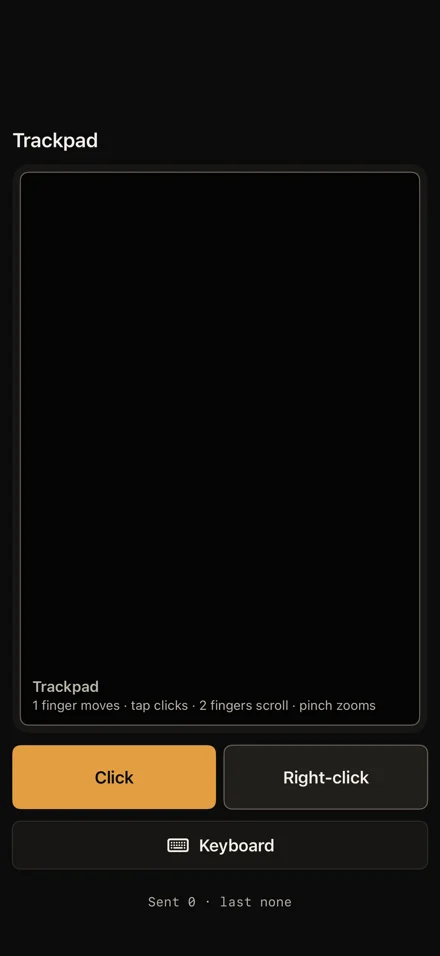
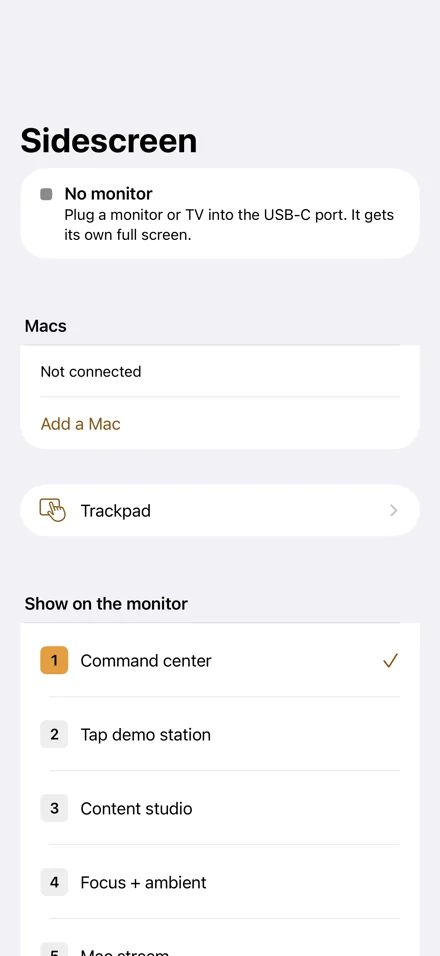
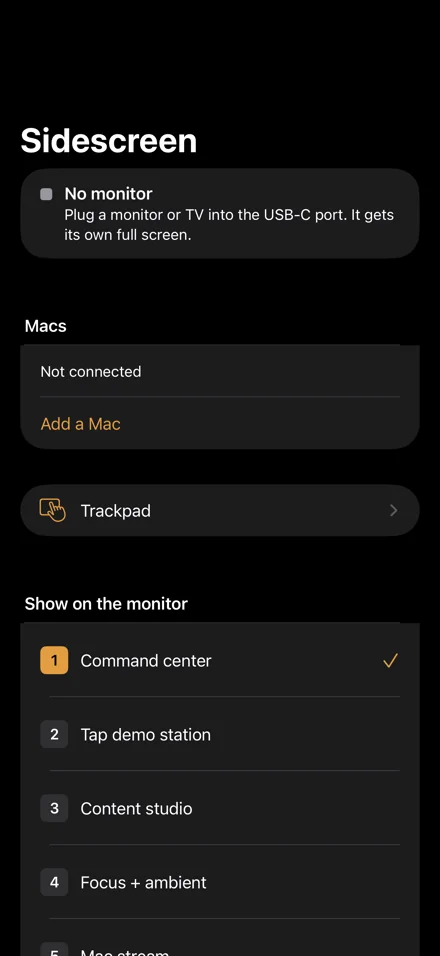
One USB-C cable to a monitor or TV, and Sidescreen draws its own full screen at that monitor's resolution and shape. Scroll, and this page does the same.
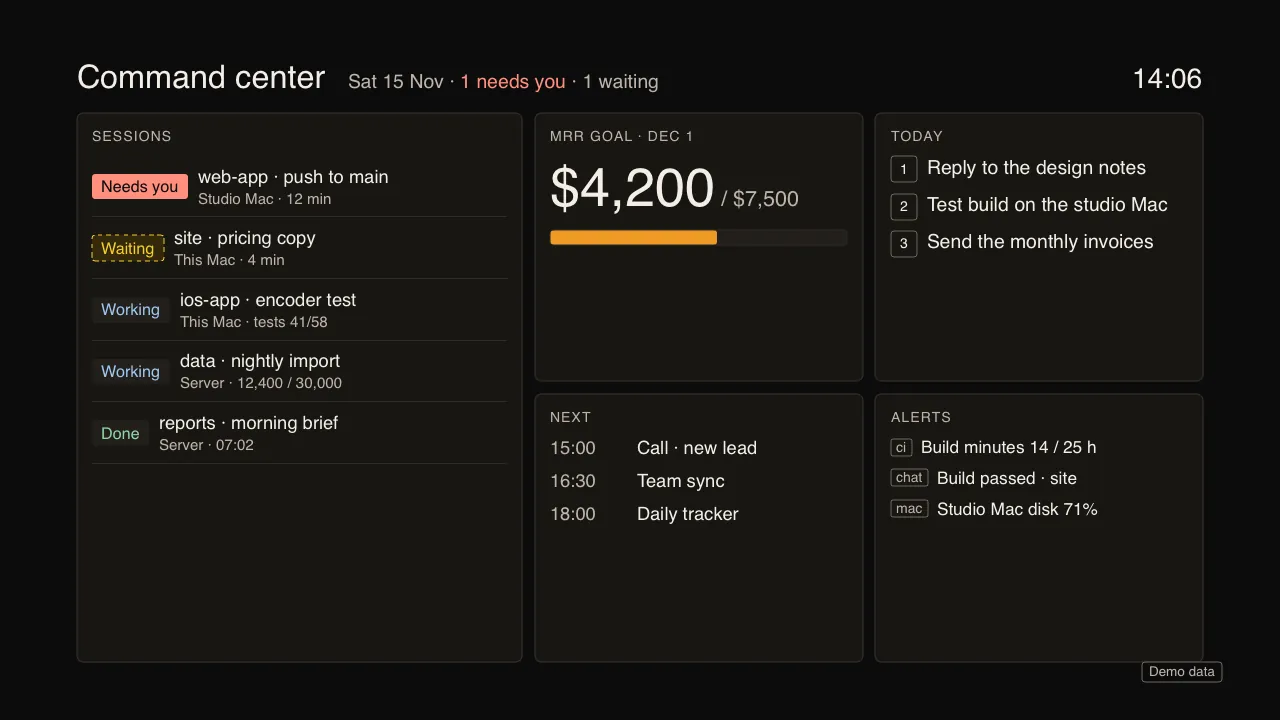
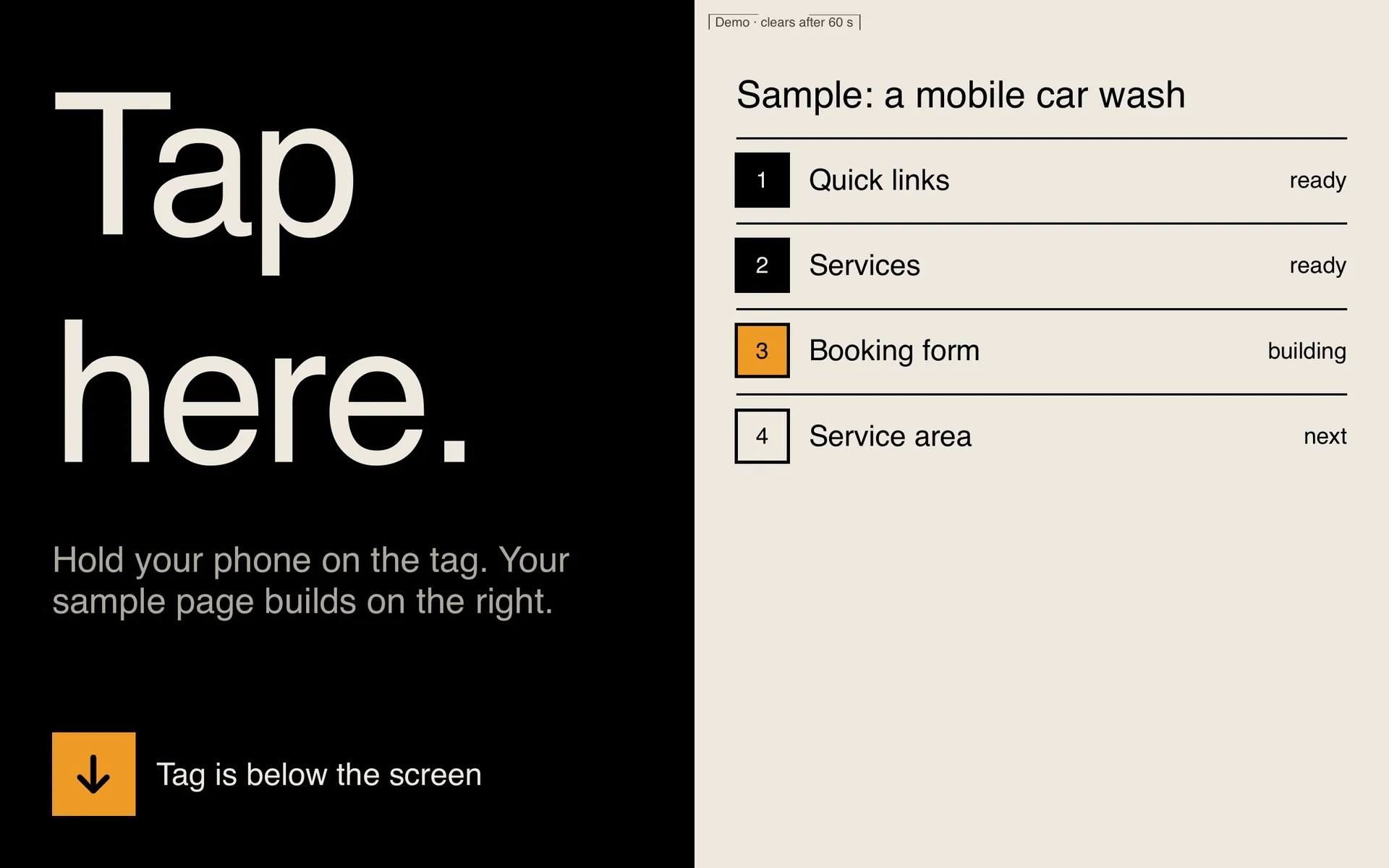
1920 × 1080 15.6-inch portable monitor, 16:9
Plugged in, it becomes the monitor.
A full screen of its own, edge to edge, no black bars, no mirrored phone. Here: Command center.
1920 × 1200 desk monitor, 16:10
Taller monitor, new layout.
It reads each screen's size, shape and refresh rate when you plug in, and lays out from that. Here: Meeting board, one site at three sizes.
3440 × 1440 ultrawide, 21:9
Wider screen, more columns.
On an ultrawide the board gains a column instead of stretching the ones it had.
1080 × 1920 monitor on its side, 9:16
Turn the monitor on its side.
Portrait gets its own layout too. Here: Content studio, teleprompter above the camera preview.
3840 × 2160 65-inch 4K TV
A TV across the room.
Text sizes from the screen and how far away you sit. On a TV that cuts off its edges, everything stays inside the safe area, the dashed line.
Turn it around.
000°
The label on the back
Turned 180°: the label.
Model
Sidescreen by ServiceAi, for iPhone, with a free helper for Mac
Input
One USB-C cable, or HDMI through a USB-C adapter
Max output
3840 × 2160, HDR, 60 Hz from an iPhone 17 Pro Max (Apple spec)
Requires
iPhone 15 or later on iOS 27. For Mac stream, a Mac on macOS 27 on the same network.
Account
None. No cloud relay. Picture and input are encrypted between your iPhone and your Mac.
Data
Not Collected. No ads, no analytics, no tracking. Privacy policy
See all ten on a TV.
The phone on the right, the monitor on the left, one cable between them. The narrated walkthrough, 37 seconds, with captions. Sound starts only when you turn it on.
Drag the corner.
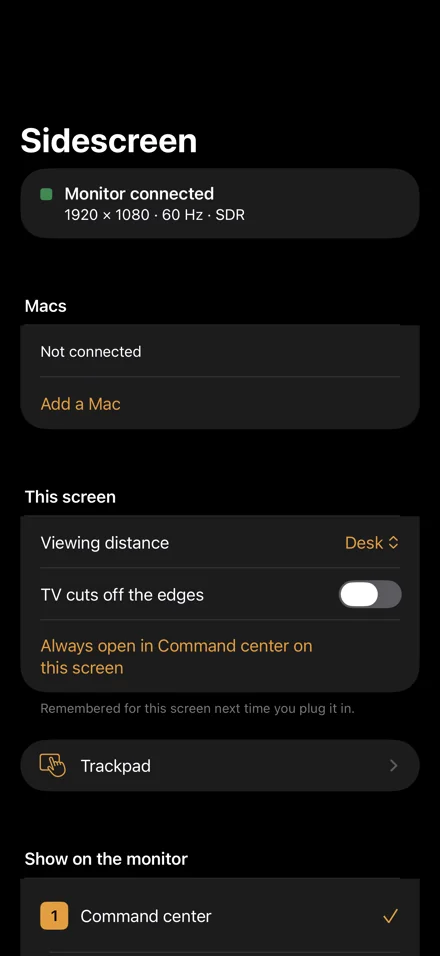
Sidescreen reads the screen it is plugged into, then lays out for it.
Desk: smaller type, more on screen.
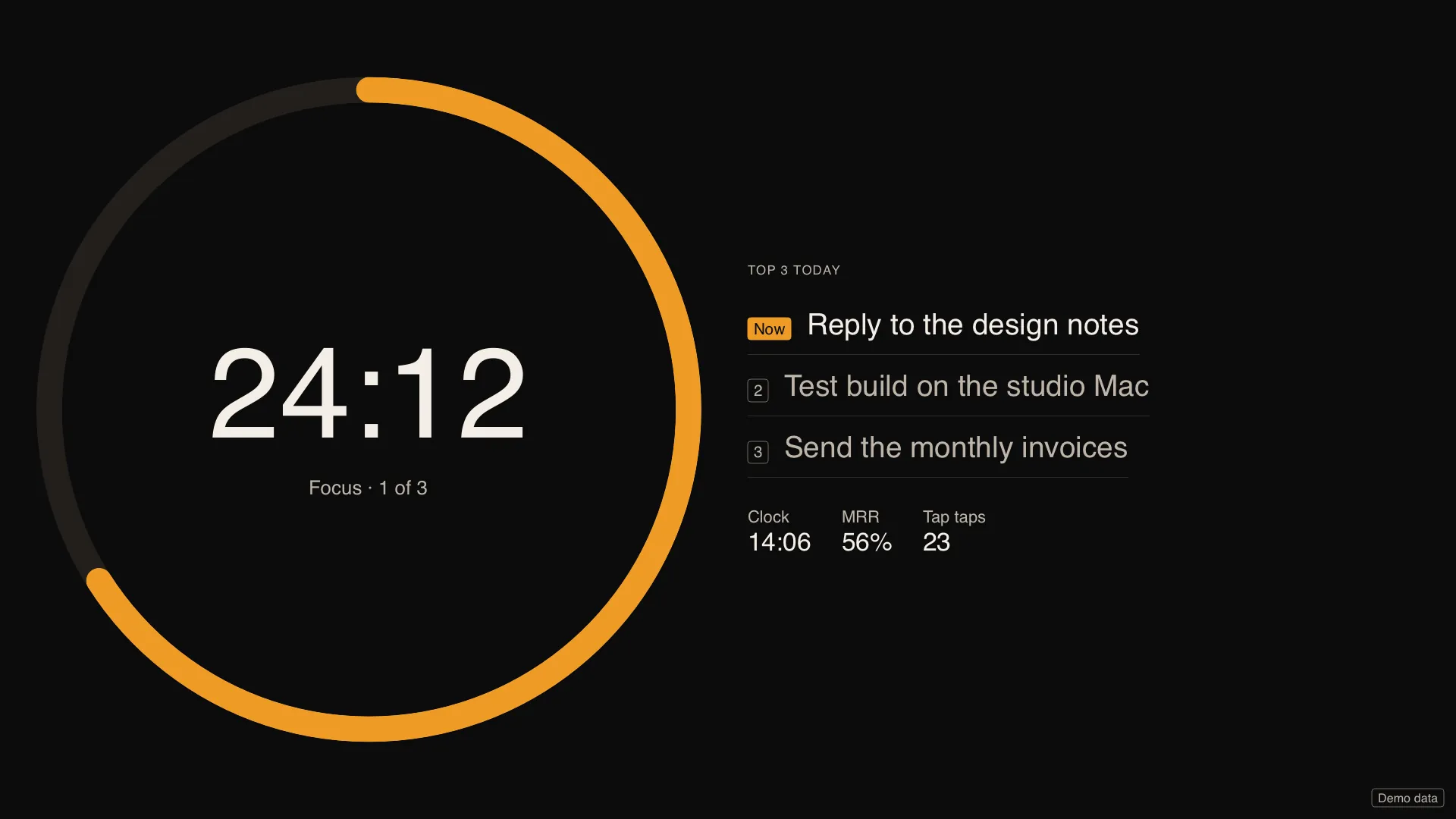
Ten modes, picked on the phone.
Two ways to use it.
Just the phone and the monitor.
Cable
One USB-C cable, or HDMI through a USB-C adapter
Picture
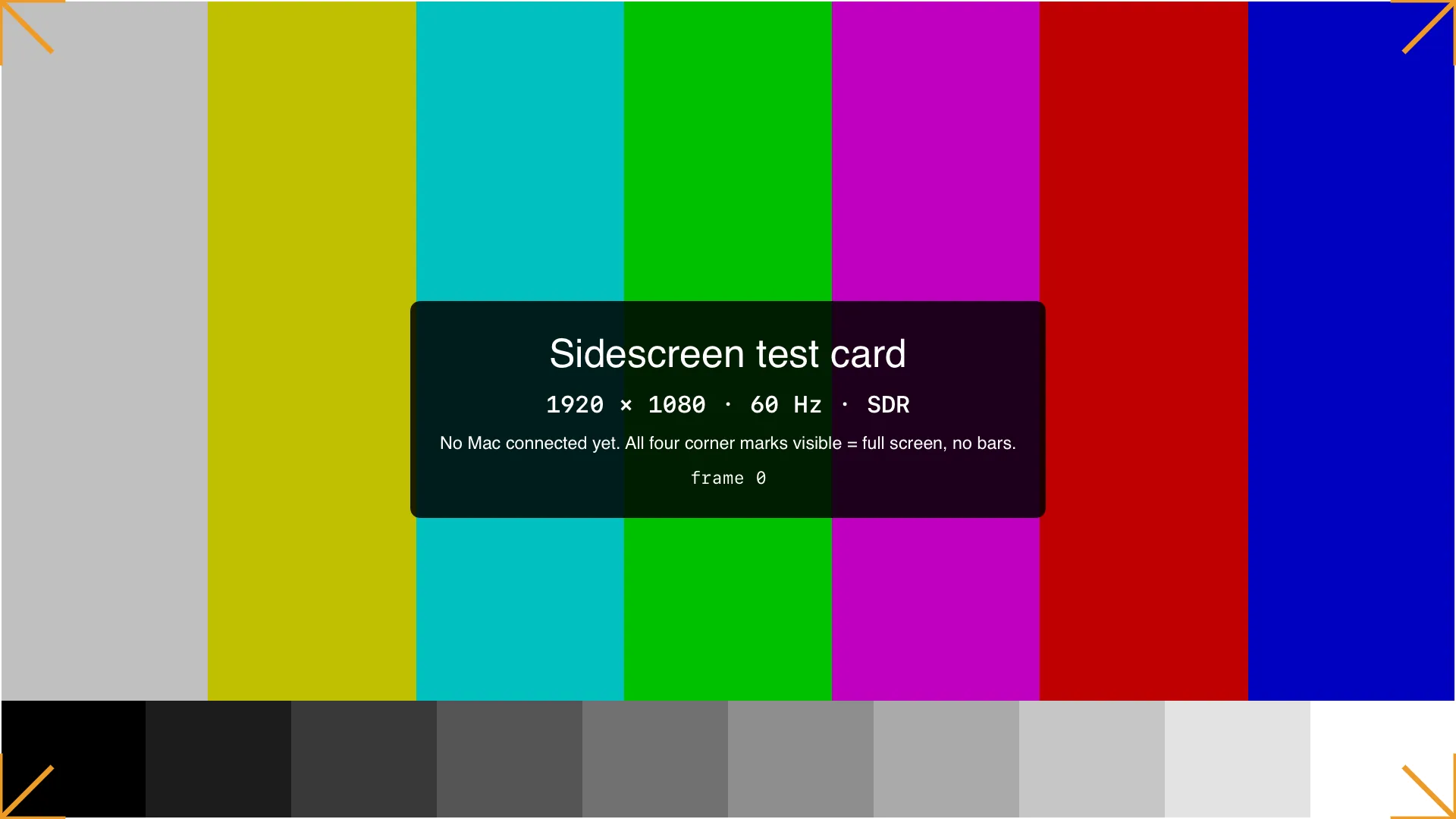
1920 × 1080 · 60 Hz · SDR, read from the monitor
Drawn by
The iPhone, at the monitor's own resolution
Remembers
Viewing distance, TV edges, the mode it opens on
The ten modes run on the iPhone itself. The iPhone stays awake while a monitor is plugged in.
Your Mac's screen, that monitor.
Sidescreen
Pair a phone
Paired phones
Remove Sidescreen
Network
Your own Wi-Fi or Ethernet. No cloud relay
Display
The helper makes one at the monitor's exact size
Input
Trackpad, keyboard, or a Bluetooth keyboard
Pairing
A code on both screens once, Face ID each time
The free Sidescreen helper streams your Mac to the iPhone, which shows it full screen on the monitor.