Sidescreen by ServiceAi: plug your iPhone into a monitor and it becomes a full screen of its own
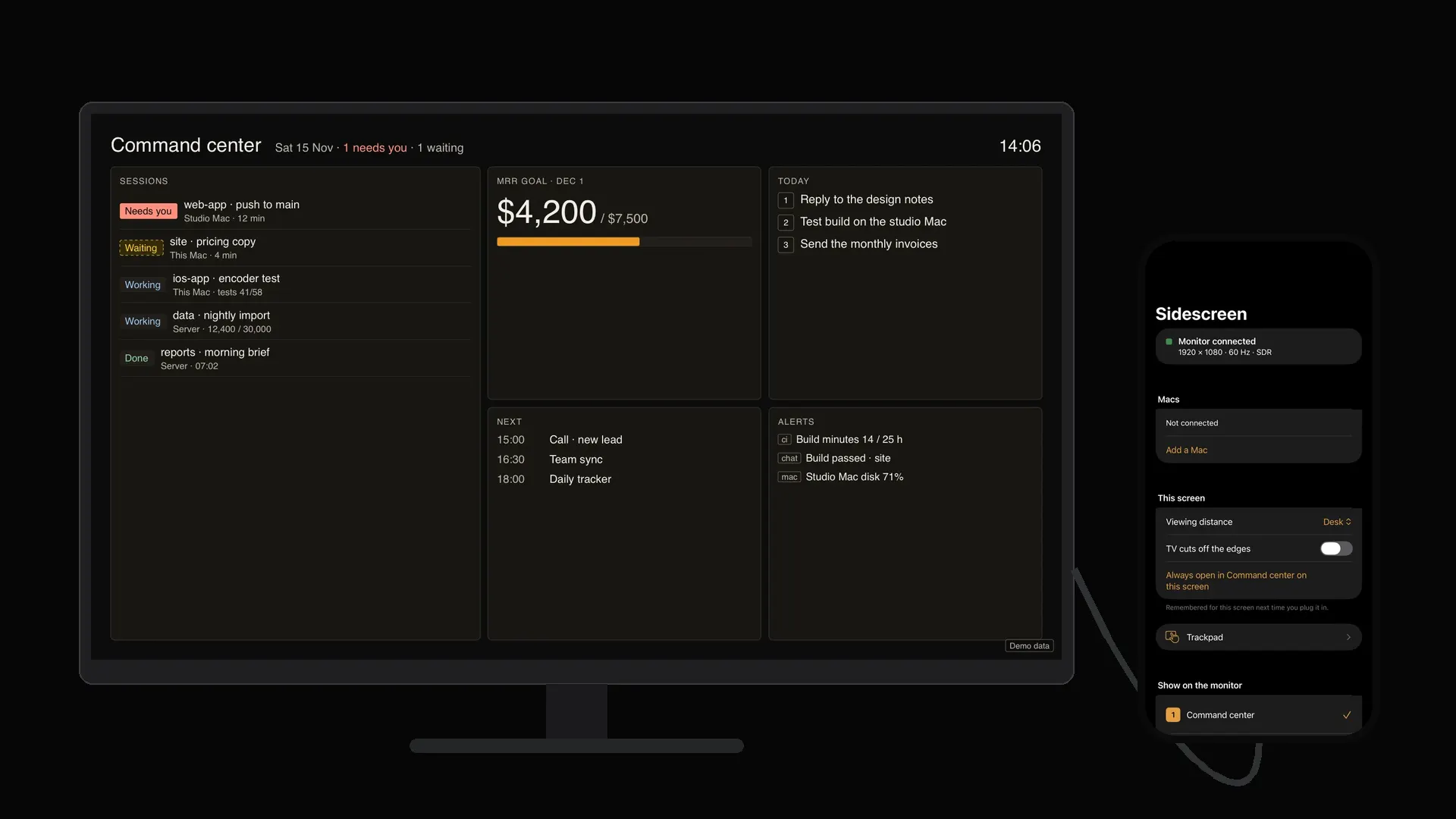
Plug your iPhone into a monitor. The monitor comes up as a full screen of its own.
Sidescreen draws straight onto any monitor or TV at that screen's own resolution and shape, edge to edge. No mirrored phone, no black bars, no Mac needed. Ten modes run from the phone, which turns into the remote. Pair a Mac and its screen shows up there too, with the iPhone as trackpad and keyboard.
In numbers
- 10modes on the monitor, picked and driven from the phone
- 1USB-C cable from iPhone to monitor or TV
- 0accounts, ads, trackers or subscriptions
- 4KHDR out over USB-C on iPhone 17 Pro Max (Apple's spec)
- $14.99once, at launch. Then $19.99. Free to start
No Mac needed for these
Sidescreen's own screens are drawn by the iPhone, straight onto the monitor at its native size.
Most phones only mirror: a small copy of the phone in the middle of a big black screen. Sidescreen gives the monitor its own picture instead, laid out for that screen's shape and how far away you sit. A 15.6-inch portable monitor at a café table, a 65-inch TV across a room, a portrait screen on a desk: each one gets a layout made for it.
While a monitor is plugged in, the iPhone stays awake so the screen never drops back to mirroring. Each monitor is remembered: viewing distance, a TV's cut-off edges, and the mode it opens on next time.
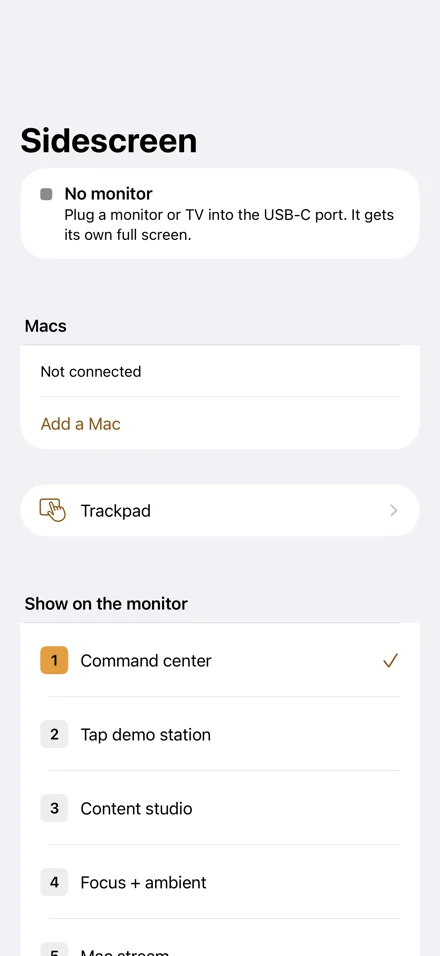
Ten things a monitor can be
Real screens from the app, shown here in the shape of the screen you are reading this on. Each one develops as it reaches you, then comes up in colour.
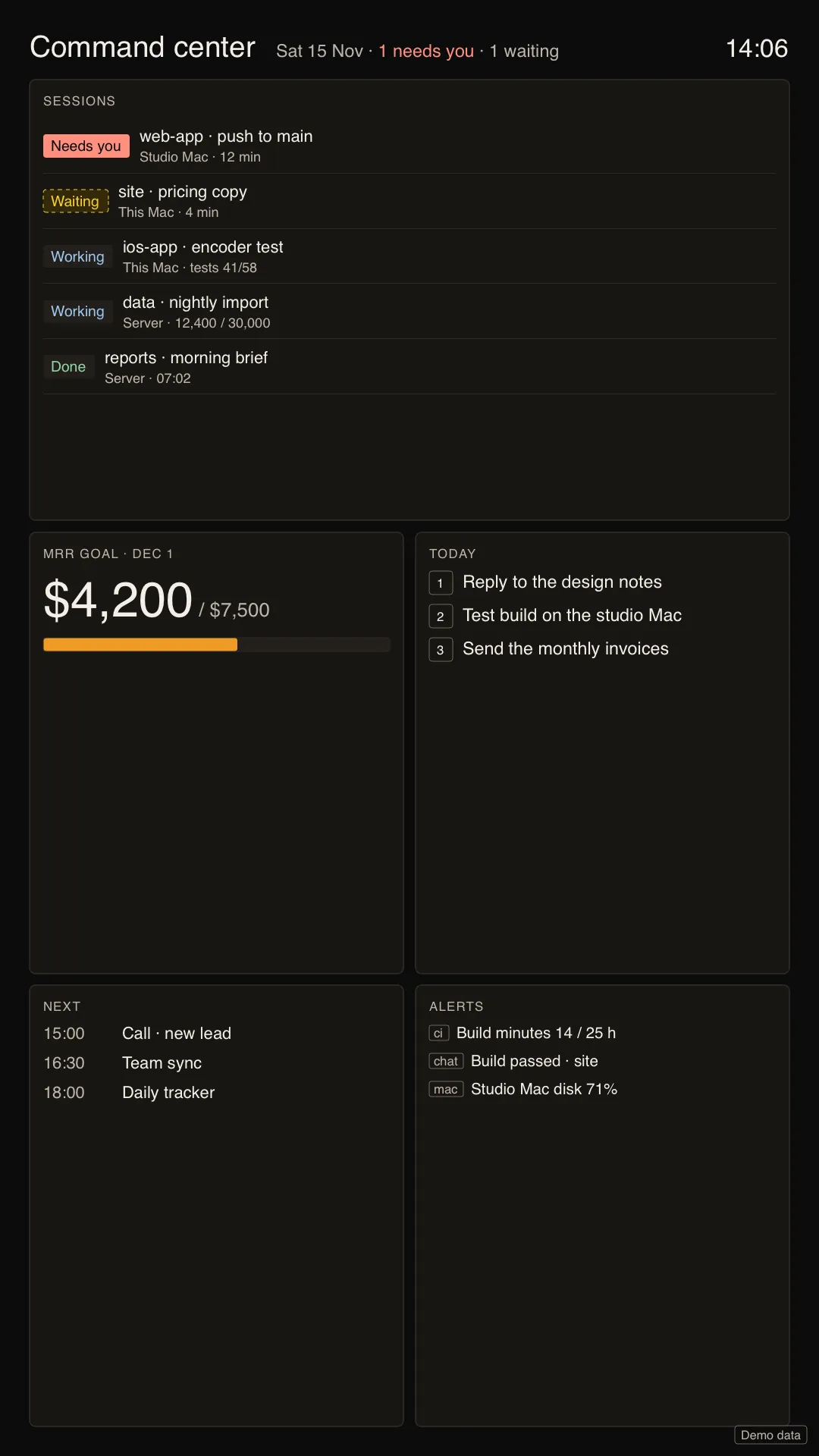
01Command center
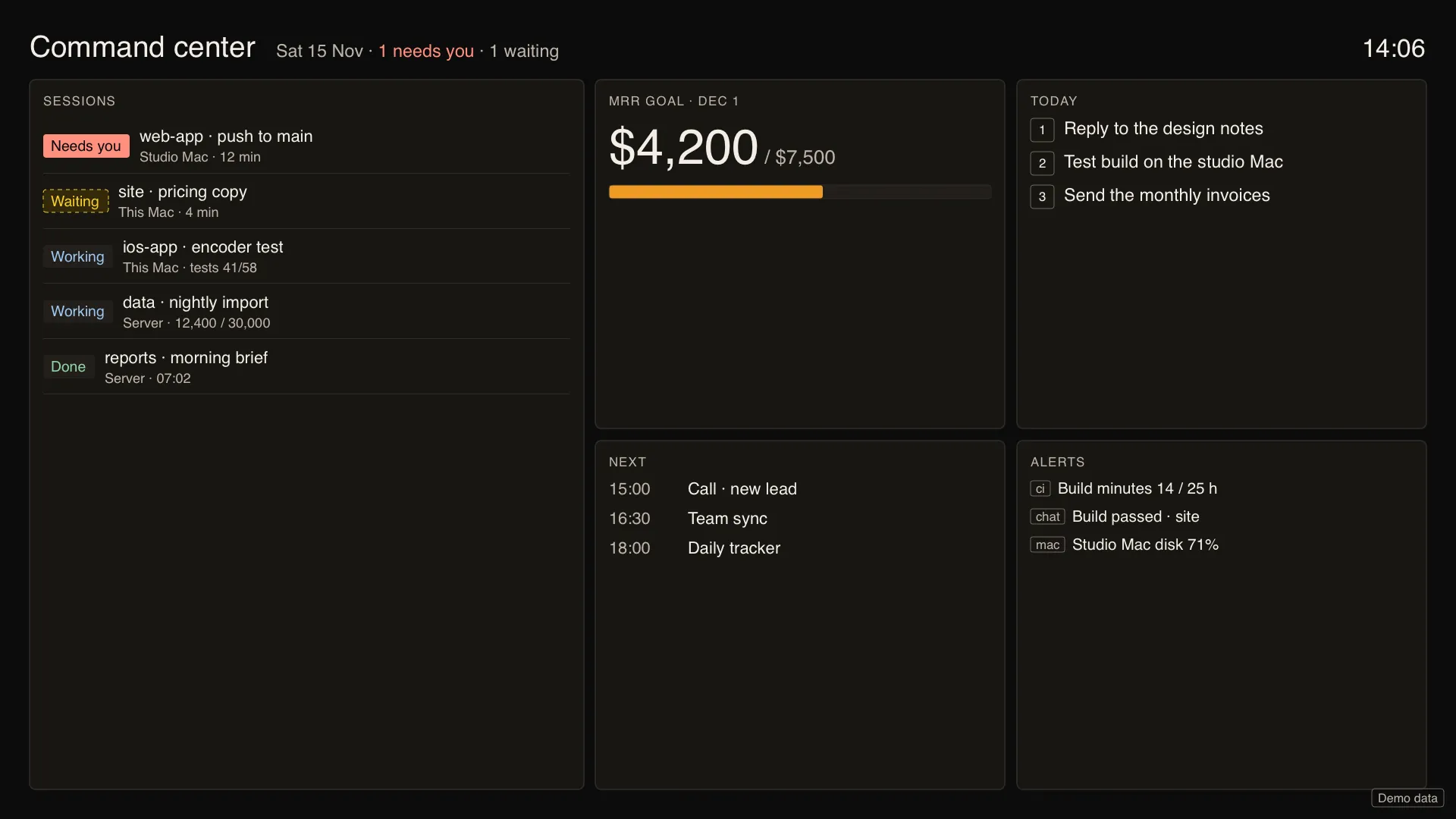
Sessions, alerts, today's tasks, a goal and the calendar on one board. Tap a tile on the phone to act.
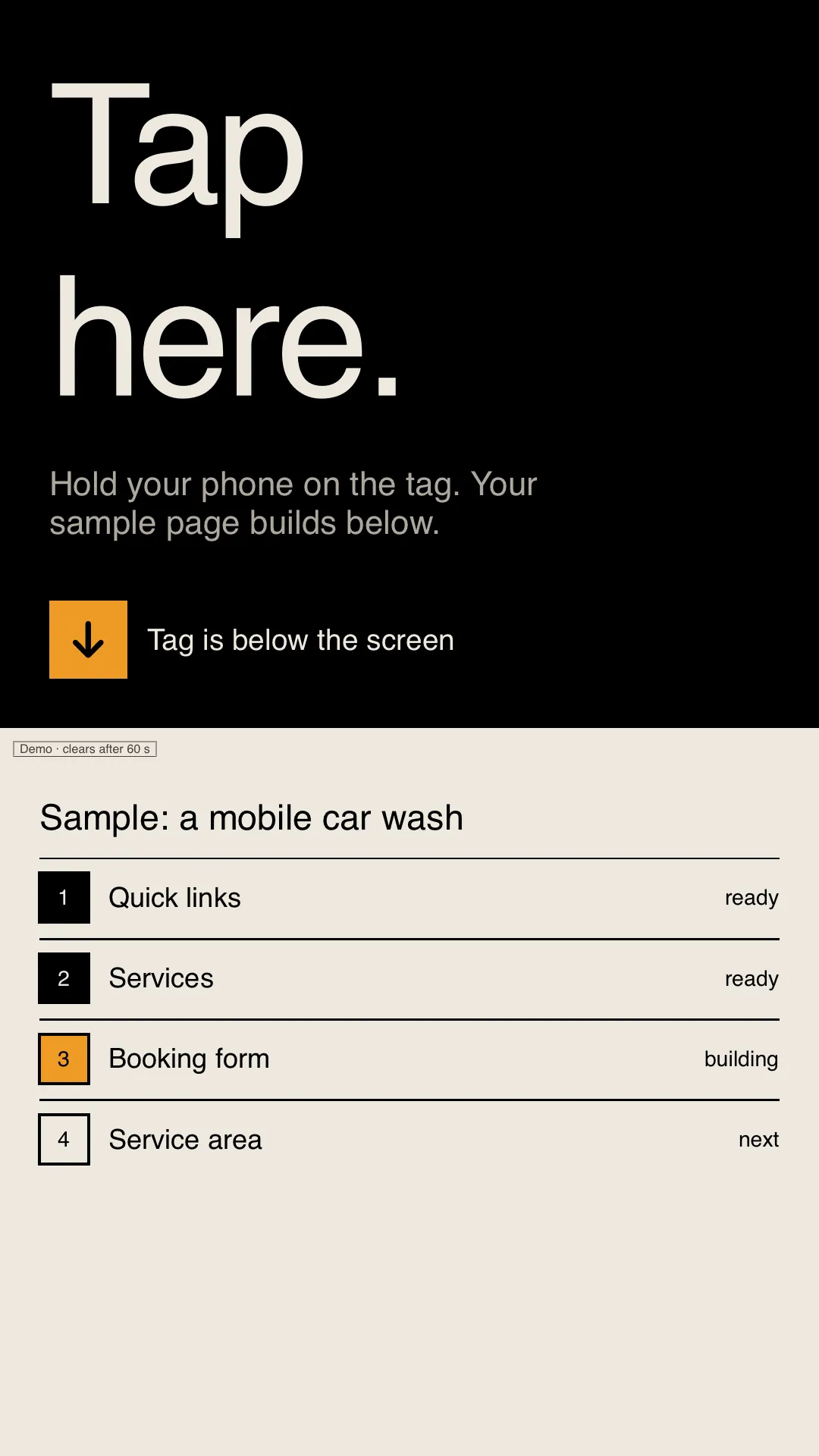
02Showcase
A counter-top demo board: a visitor holds their phone to the tag and a sample page builds on the big screen.
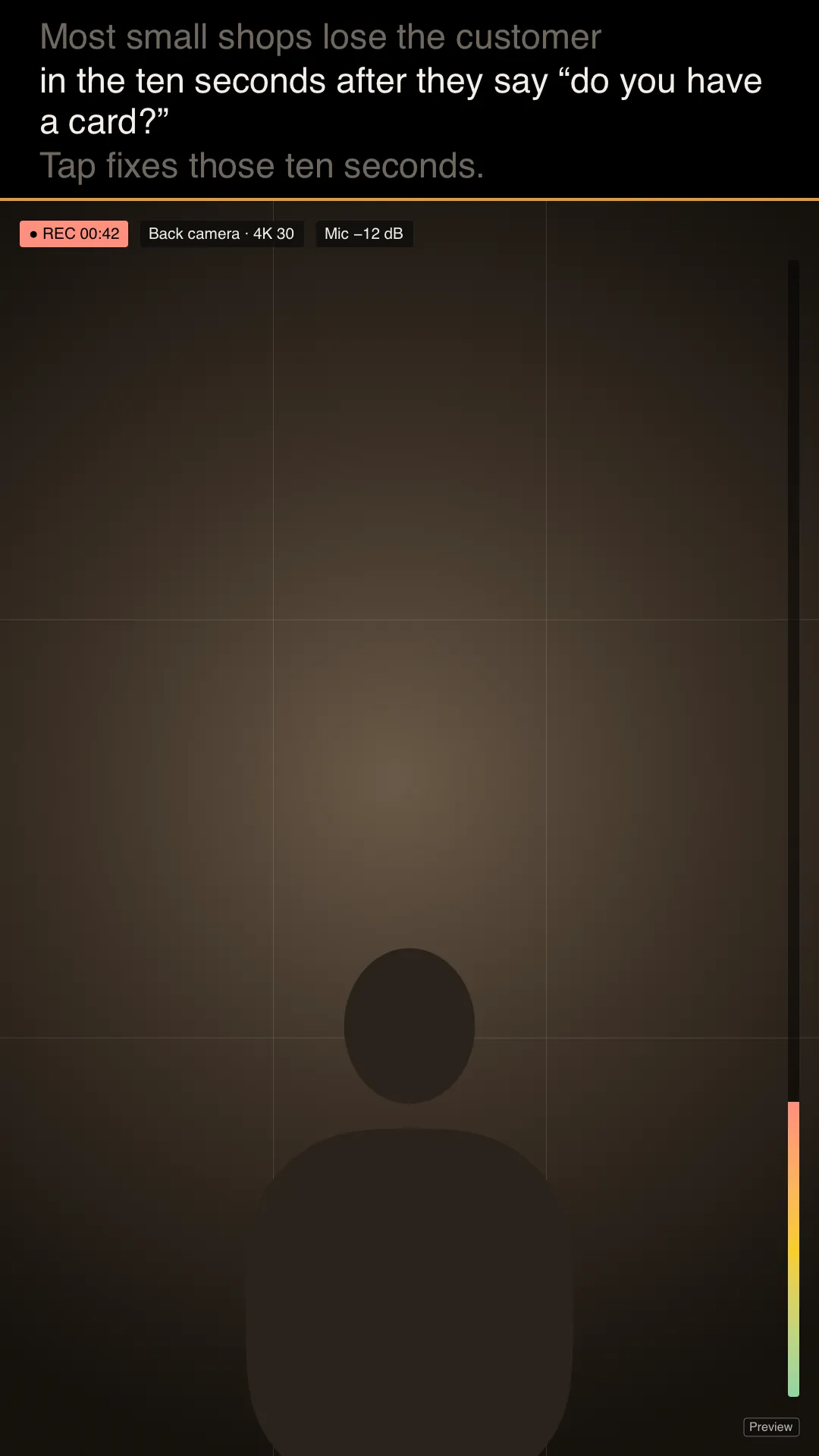
03Content studio
A big camera preview with the teleprompter above it, at eye level. The phone records.
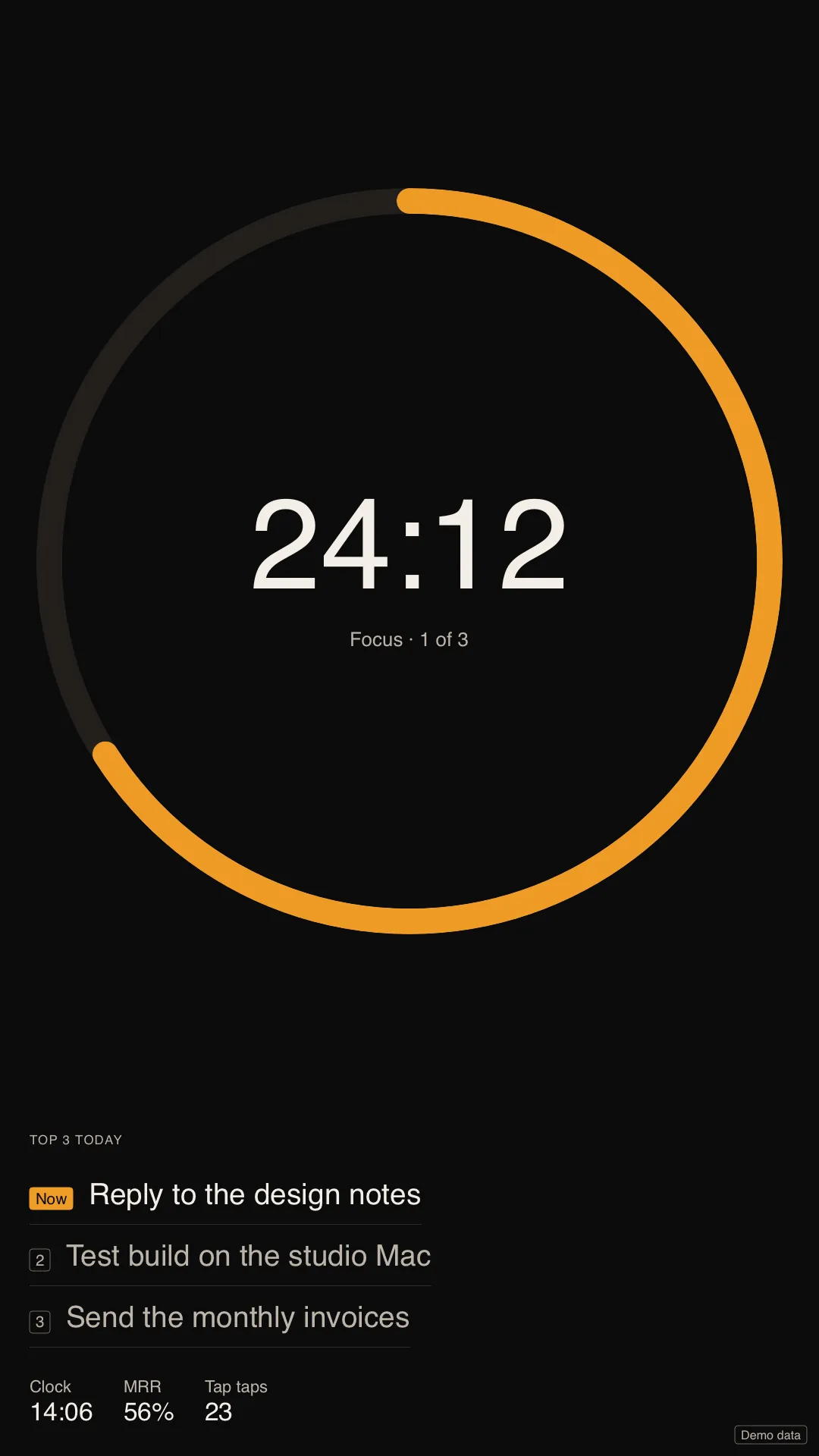
04Focus + ambient
A calm timer and your top three. Left alone, it settles into a clock.
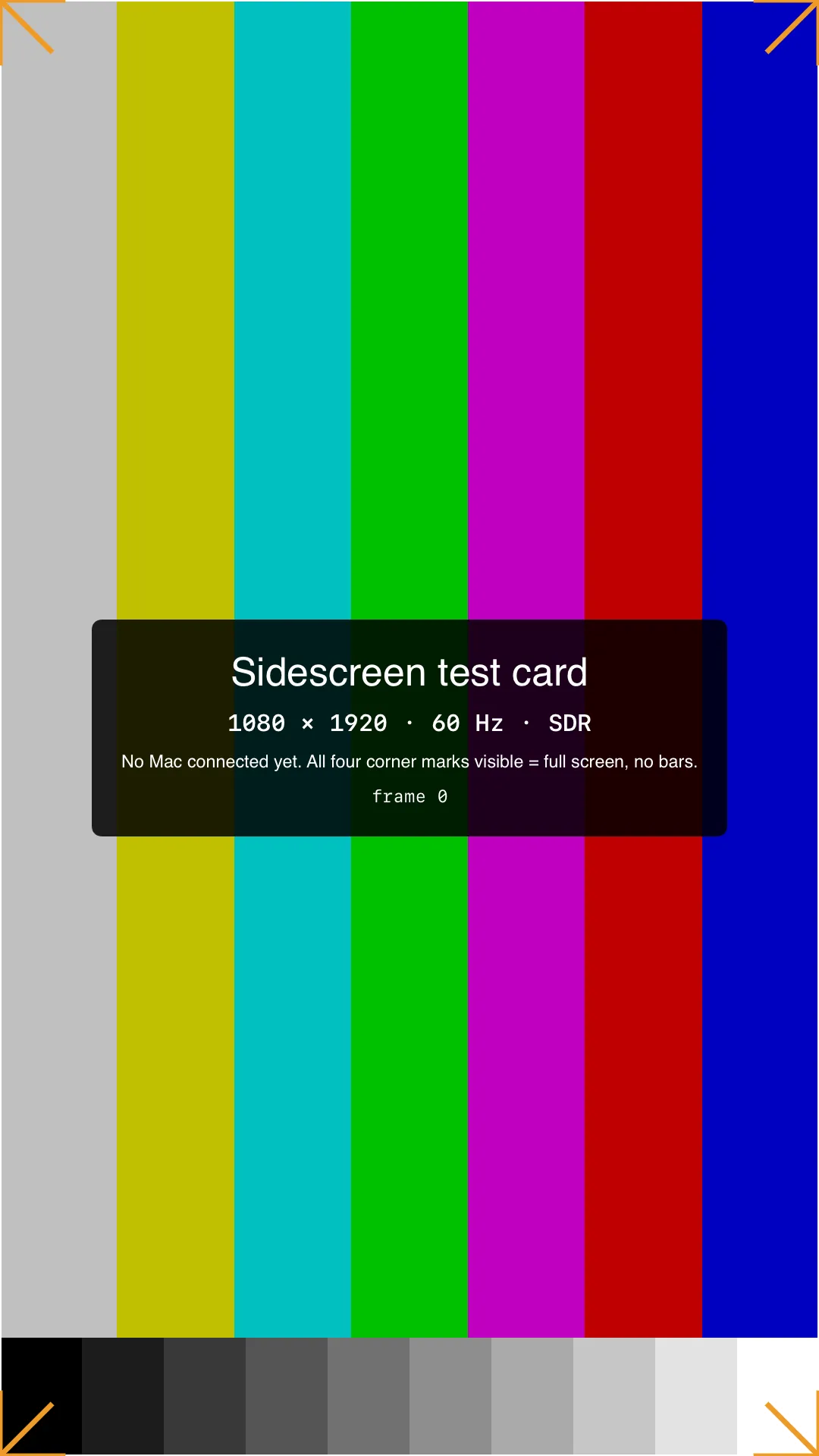
05Mac stream
Your Mac's desktop, full screen at the monitor's size. The phone becomes trackpad and keyboard.
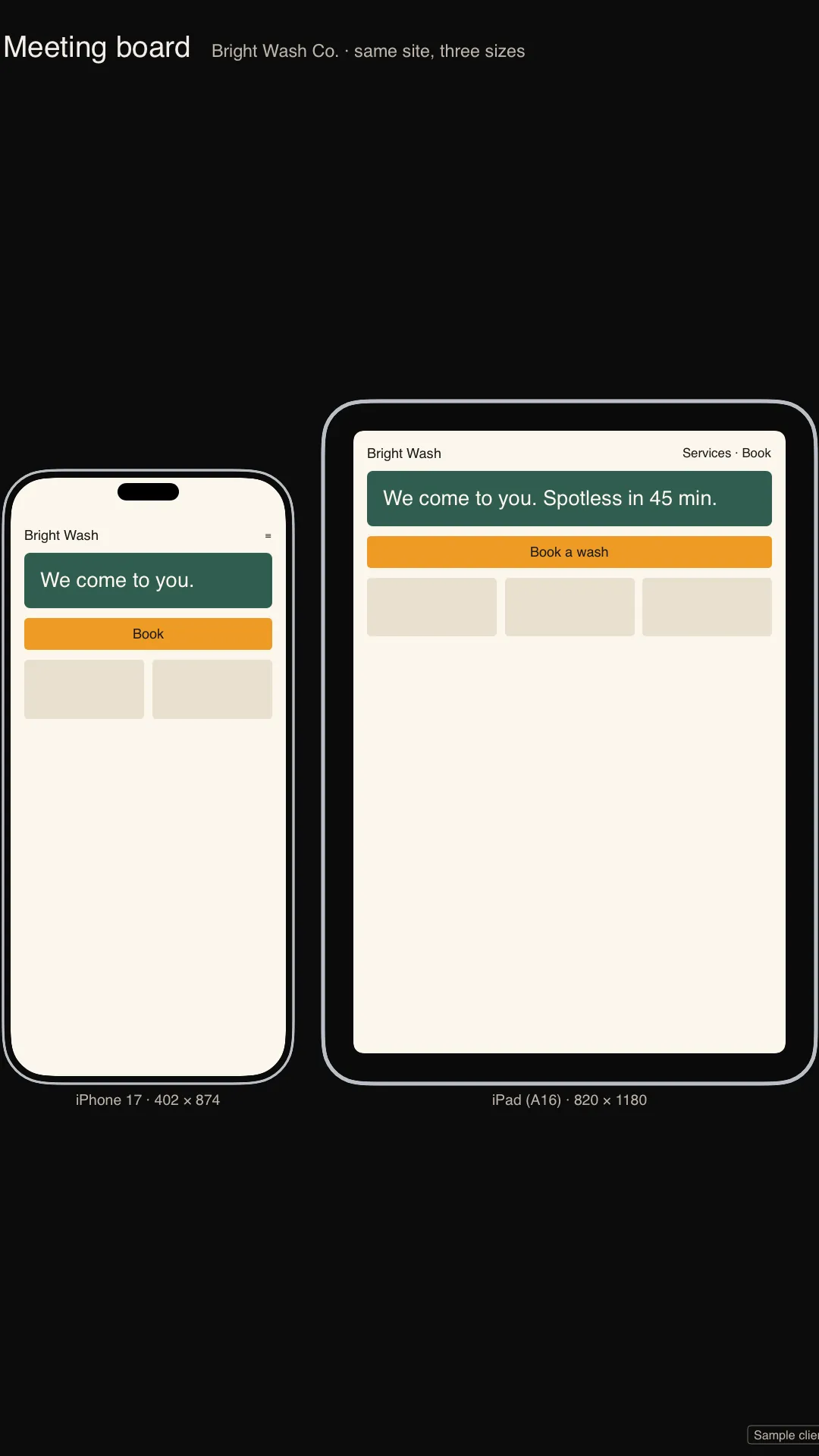
06Meeting board
One site at phone, tablet and desktop size, side by side, for the person across the table.
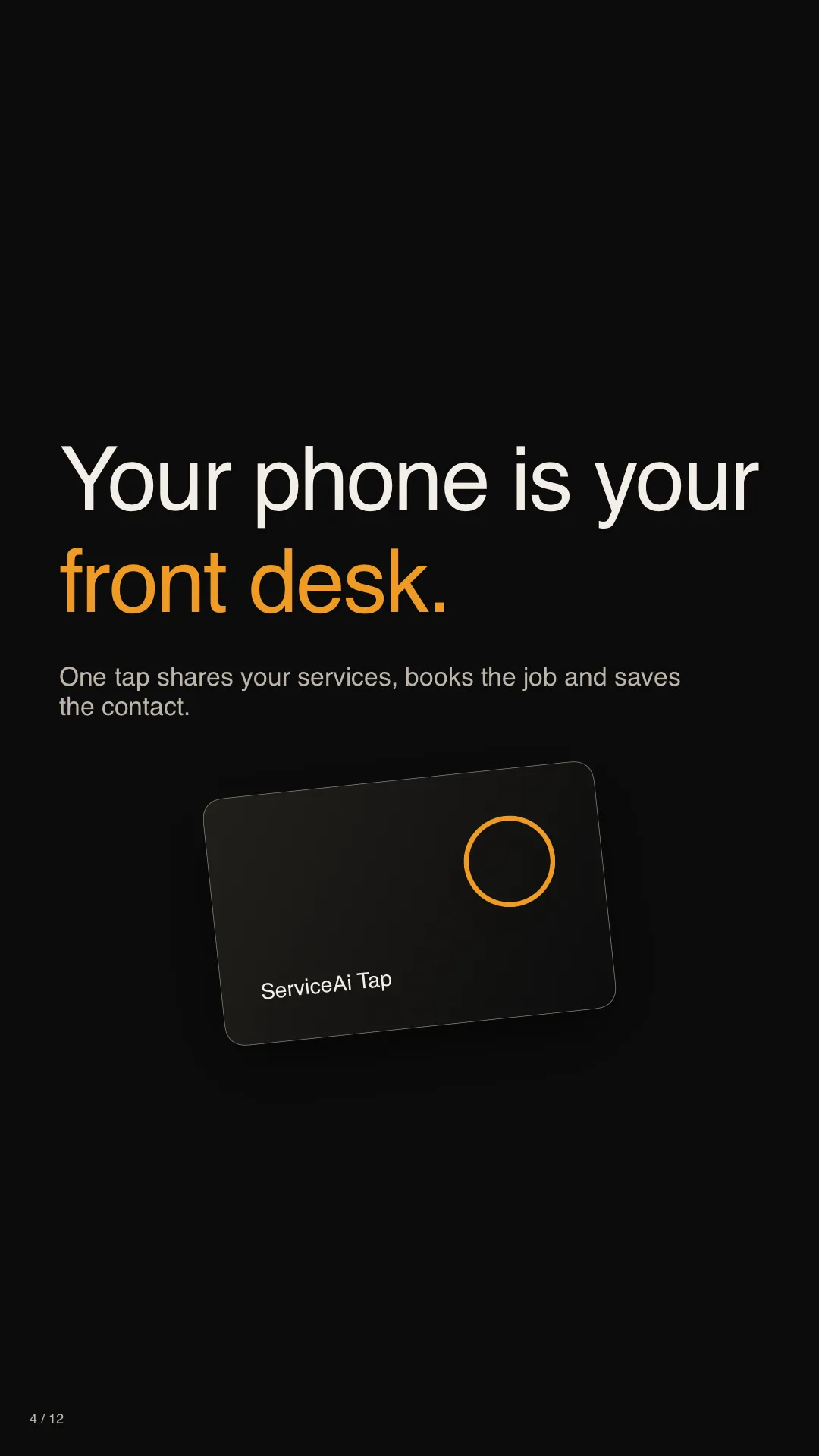
07Presenter
Clean slides on the big screen. Notes and what's next stay on the phone.
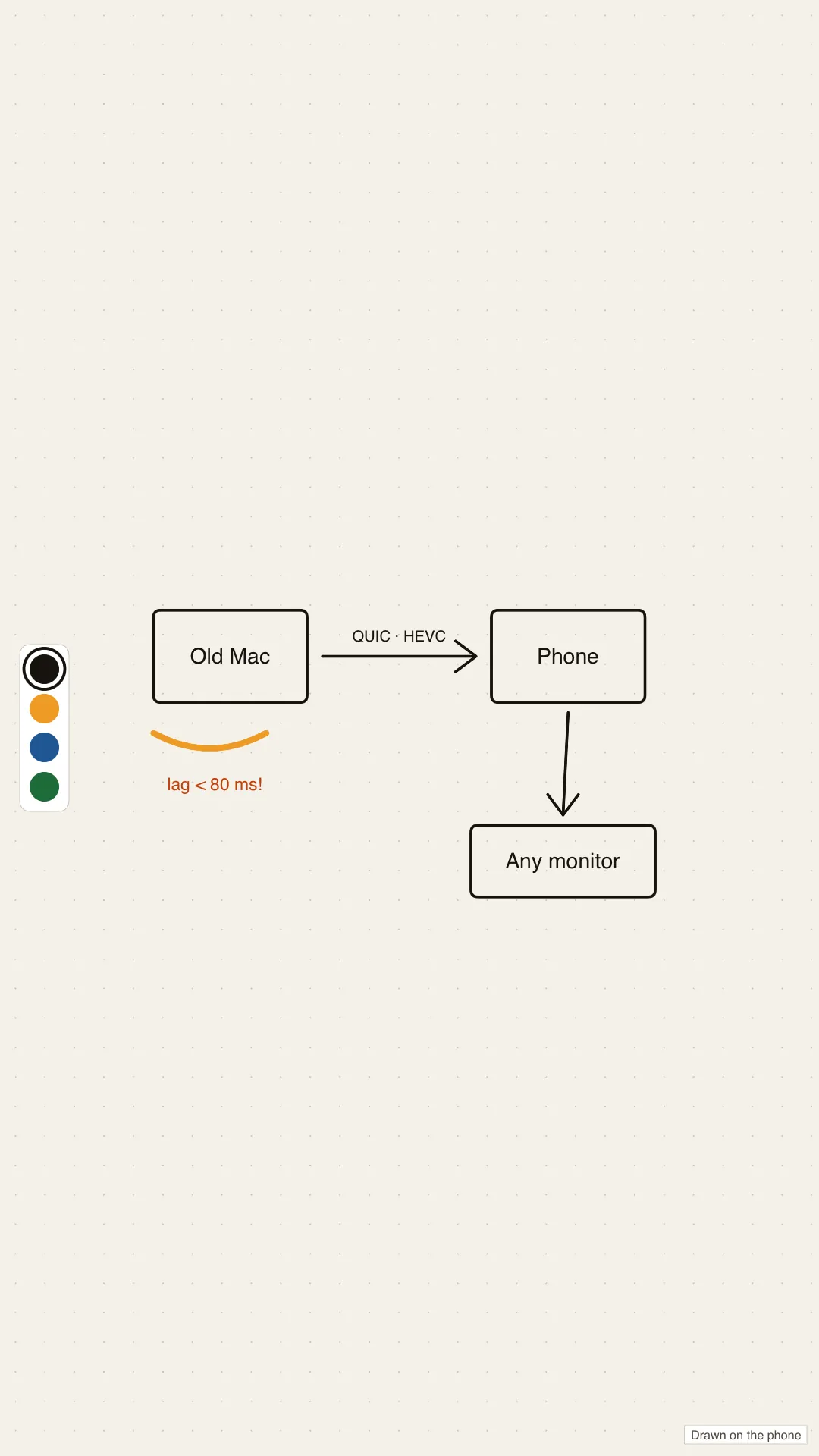
08Whiteboard
A big canvas you draw on with a finger on the phone.
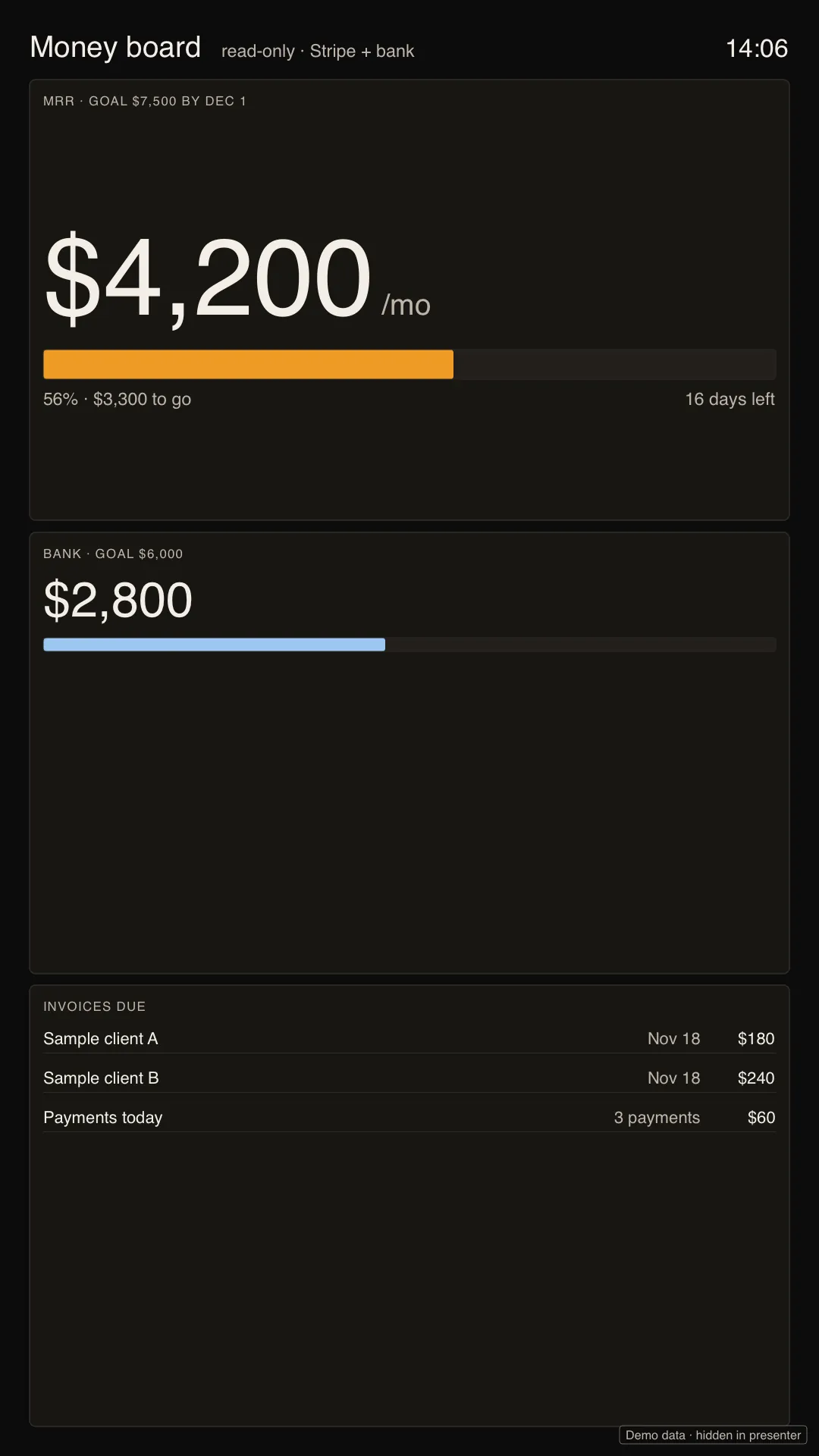
09Money board
Your monthly goal, bank and invoices due, read-only, in type you can read from across the room.
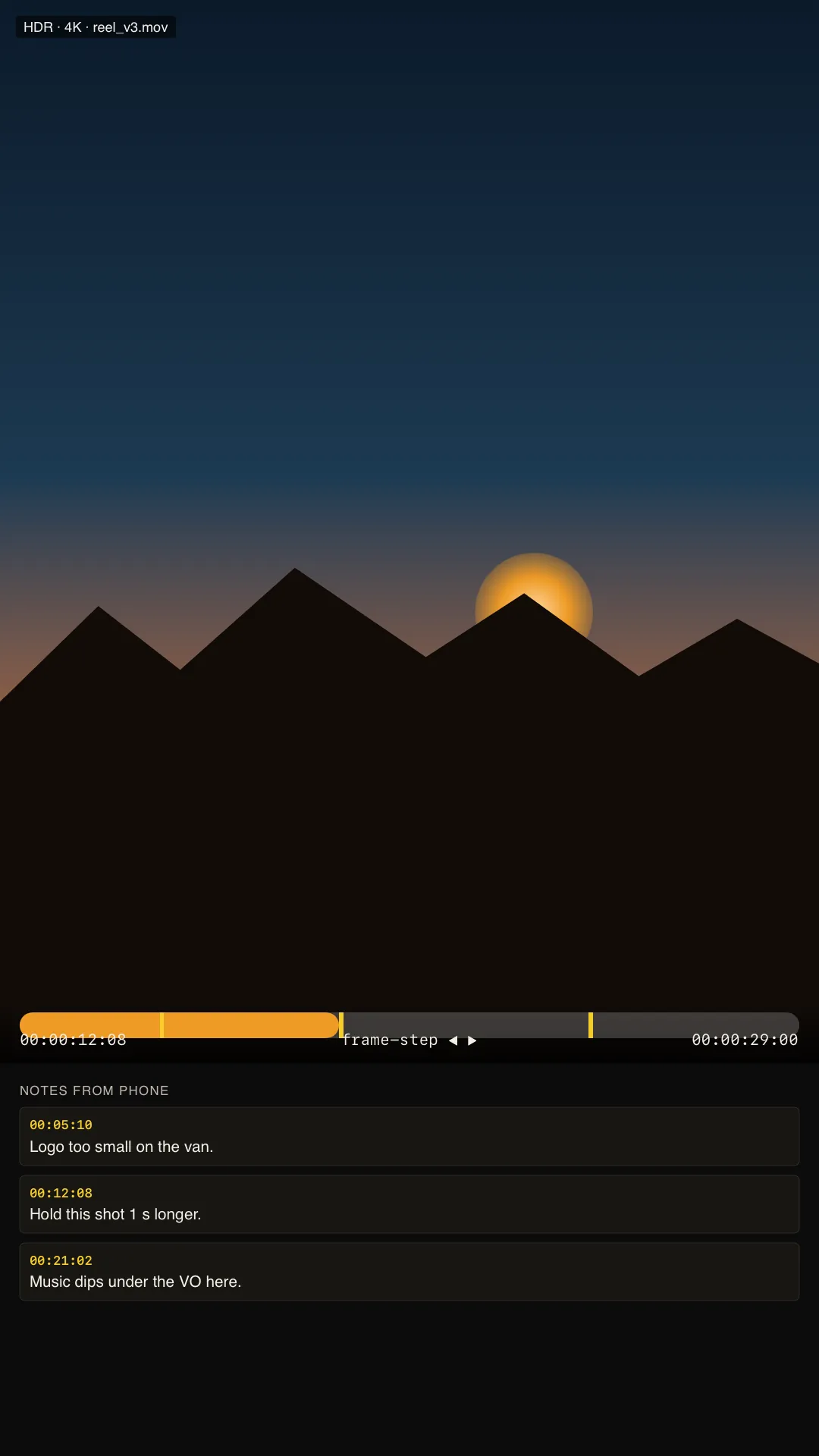
10Review room
Full-screen playback for cuts and renders: scrub, step a frame, and drop timed notes from the phone.
Your Mac, at the monitor's exact size
Pair a Mac and its screen comes up on that monitor, full screen, while the iPhone in your hand becomes the trackpad and keyboard.
The free Sidescreen helper sits in the Mac's menu bar. It makes a display at exactly the size of the monitor you plugged in, so the Mac's picture fills it with no bars, and streams it to the iPhone over your own Wi-Fi or Ethernet. Everything runs on the Mac; the phone shows the picture and sends your input.
Move, click, right-click, drag and scroll with trackpad gestures. Type on the iPhone keyboard or a Bluetooth keyboard, with the usual shortcuts. Click and right-click are also named buttons, so it works with VoiceOver and Voice Control.
Pairing happens once, in person: scan the code the Mac shows, check the same code is on both screens. Face ID or your passcode before every connection. The picture and your input are encrypted end to end between your iPhone and your Mac, on your local network only.
The Mac helper free, notarized; download arrives with the App Store release
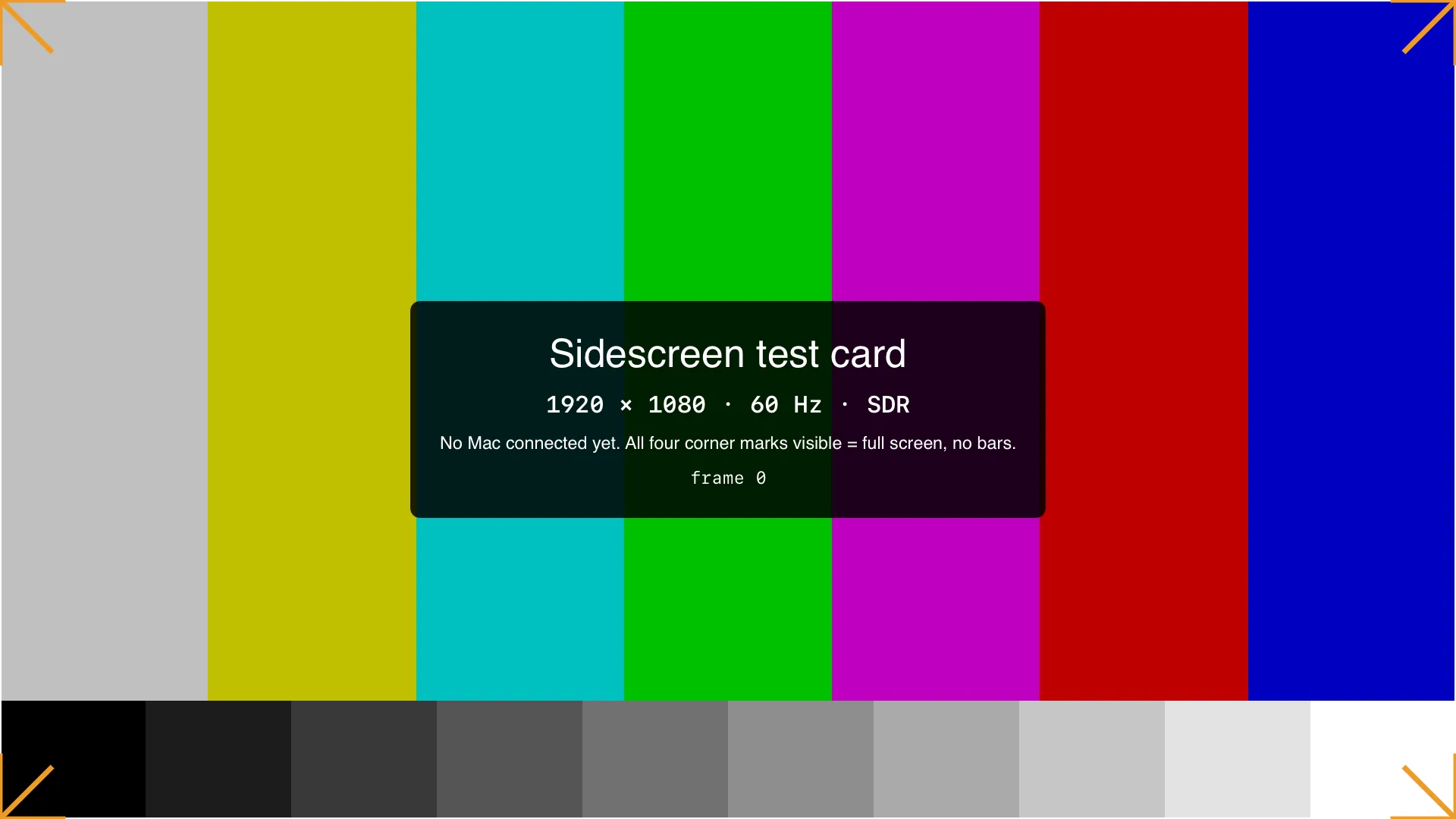
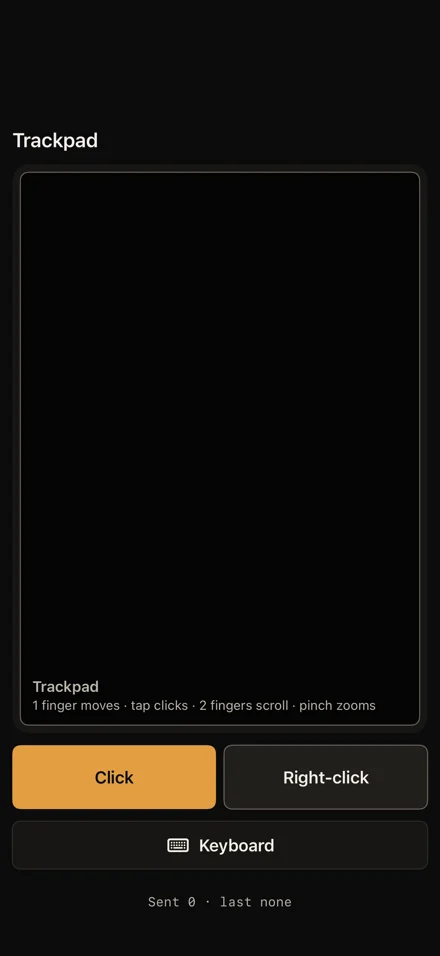
Mac stream before a Mac is paired: a test card at 1920 × 1080, all four corners on screen. On the phone, the trackpad.
Any screen, any shape
When you plug in, Sidescreen reads the screen's native size, shape, scale and refresh rate, then lays the mode out for that screen. Text is sized for the viewing distance you choose: desk, room or across the room. A TV's cut-off edges are respected.
Command center on a 15.6″ portable monitor
The screening
The narrated film is being cut. Until then this is a silent run through the real app on a 1080p monitor; captions name each mode.
Price
$14.99 at launch for Sidescreen Pro, then $19.99. Paid once.
Free to download and start using. No subscription, no account, nothing to renew. The Mac helper is free. App Store purchases are handled by Apple.
Questions
01Do I need a Mac?
No. The iPhone draws Sidescreen's own screens straight onto the monitor. A Mac only comes in when you want that Mac's screen on the monitor (Mac stream), with the free helper running on it.
02Which iPhones work?
An iPhone with USB-C video output (iPhone 15 or later) on iOS 27 or later. iPhone 17 Pro Max can send up to 4K HDR over USB-C.
03Which monitors and TVs?
A monitor or TV with USB-C video input, or HDMI through a USB-C adapter. Sidescreen reads each screen's size, shape and refresh rate: 16:9, 16:10, ultrawide, portrait and TVs. Some monitors, adapters and TVs may not support USB-C video.
04Isn't this just mirroring?
Mirroring puts a small copy of the phone in the middle of a black screen. Sidescreen fills the monitor edge to edge at its own resolution and leaves the phone free to be the remote. If the monitor ever shows a copy of the phone, unplug and plug back in with Sidescreen open.
05Is it a subscription?
No. Free to start; Sidescreen Pro is $19.99 once, $14.99 at launch. No account.
06What do you collect?
Nothing. The app's App Store privacy answer is Data Not Collected. Your Mac's picture and your input travel only between your iPhone and your own Mac on your local network, encrypted end to end. Privacy policy
07Where do I get the Mac helper?
It is a free, notarized menu-bar app. The download arrives with the App Store release, on the support page.
08When can I get it?
Sidescreen is in testing now. Join the launch list below and you'll get one email when it's on the App Store.