How it works
Nine steps, start to delete, in the app's own words.
Try it
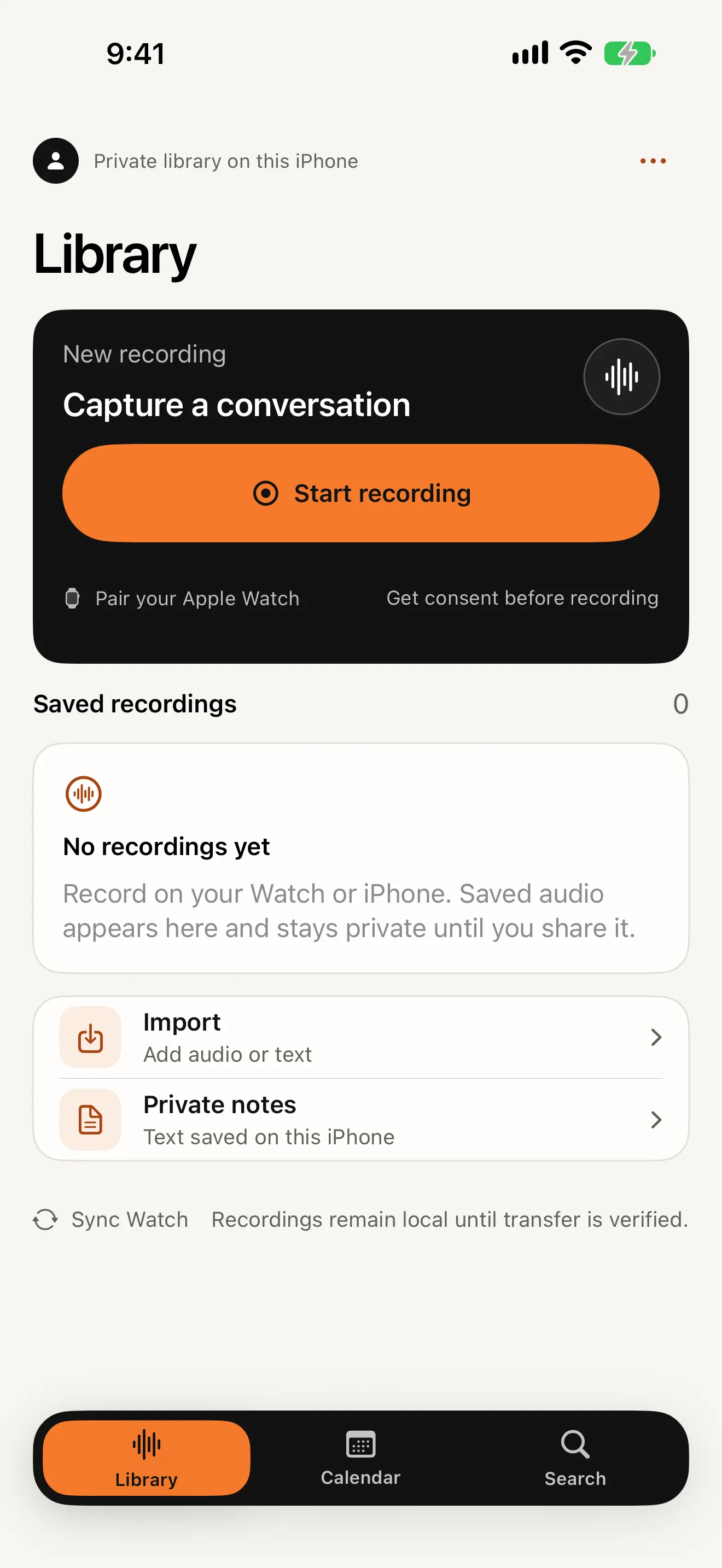
Start
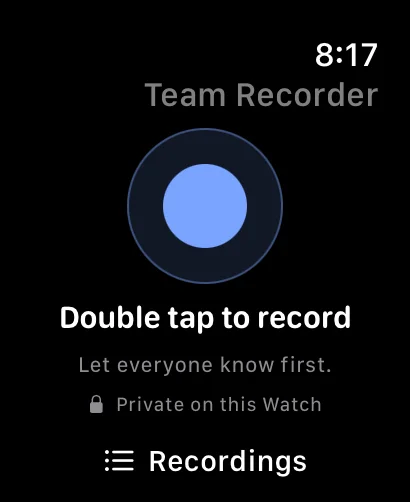
On the Watch, tap the microphone button, or double-tap the screen. On iPhone, open the Library tab and tap Start recording.
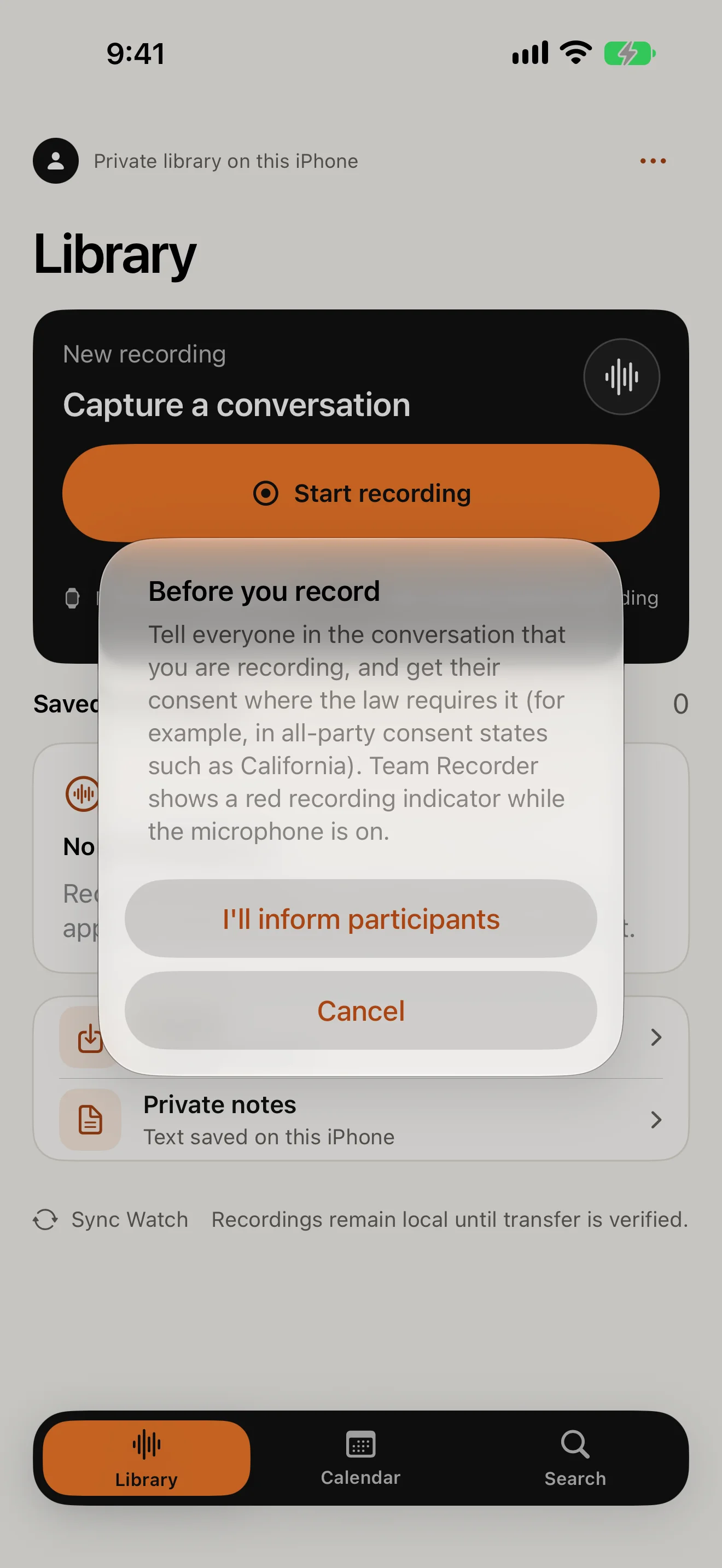
Consent
The first time, a Before you record notice asks you to tell people. Tap I'll inform participants, then allow the microphone.
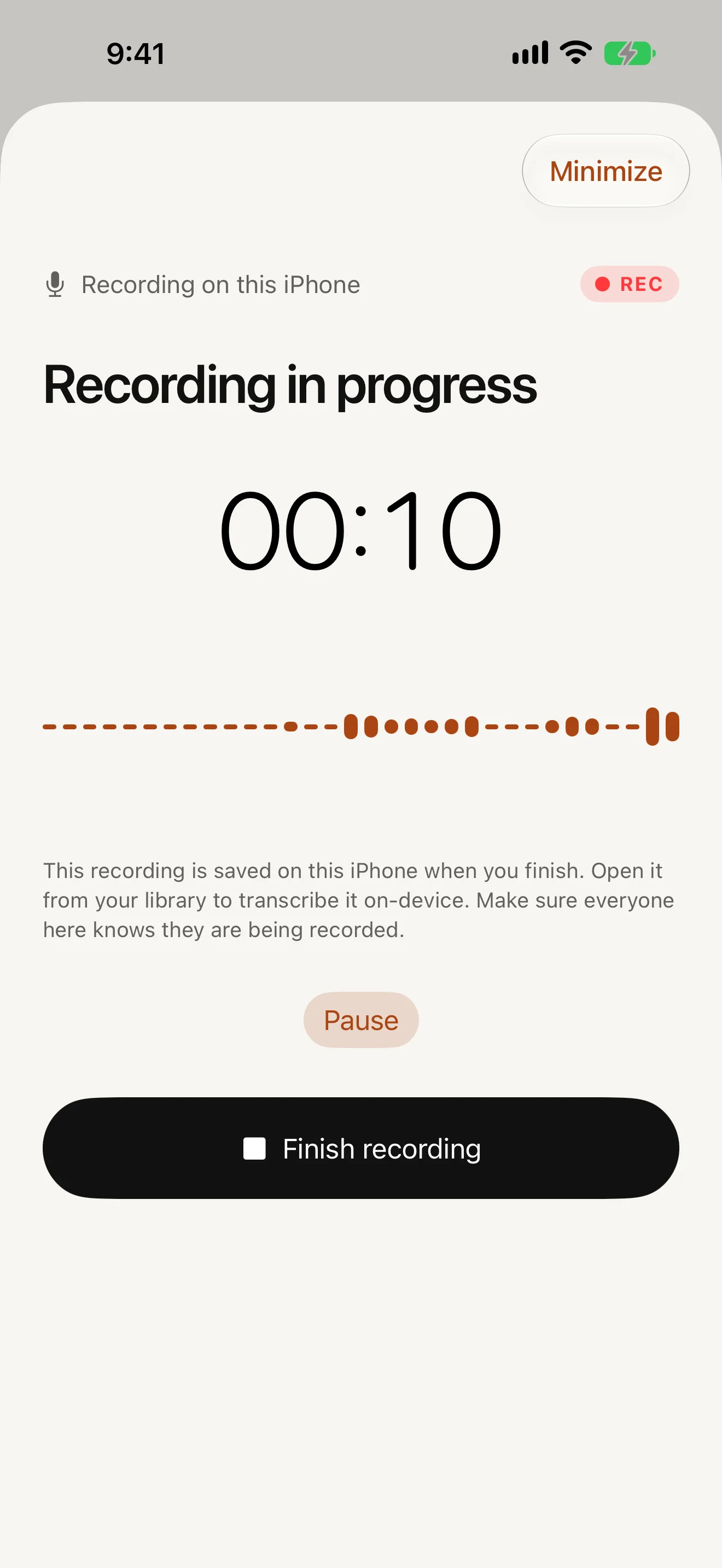
Record
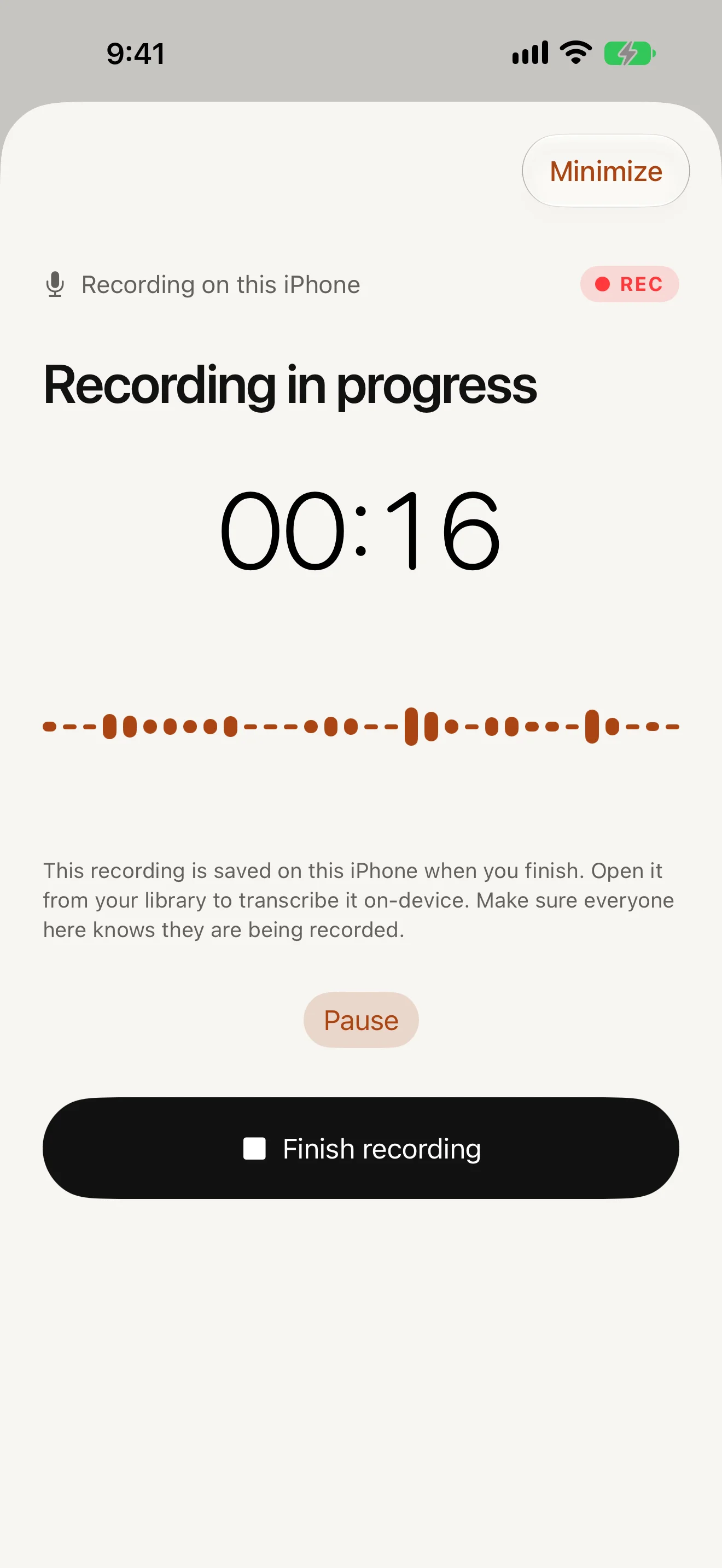
A red REC indicator and timer stay visible while you record. Gentle check-ins every 15 minutes remind you it is still running.
Pause
Pause and Resume as needed. Long meetings are saved in segments, and interrupted audio is recovered instead of lost.
Finish
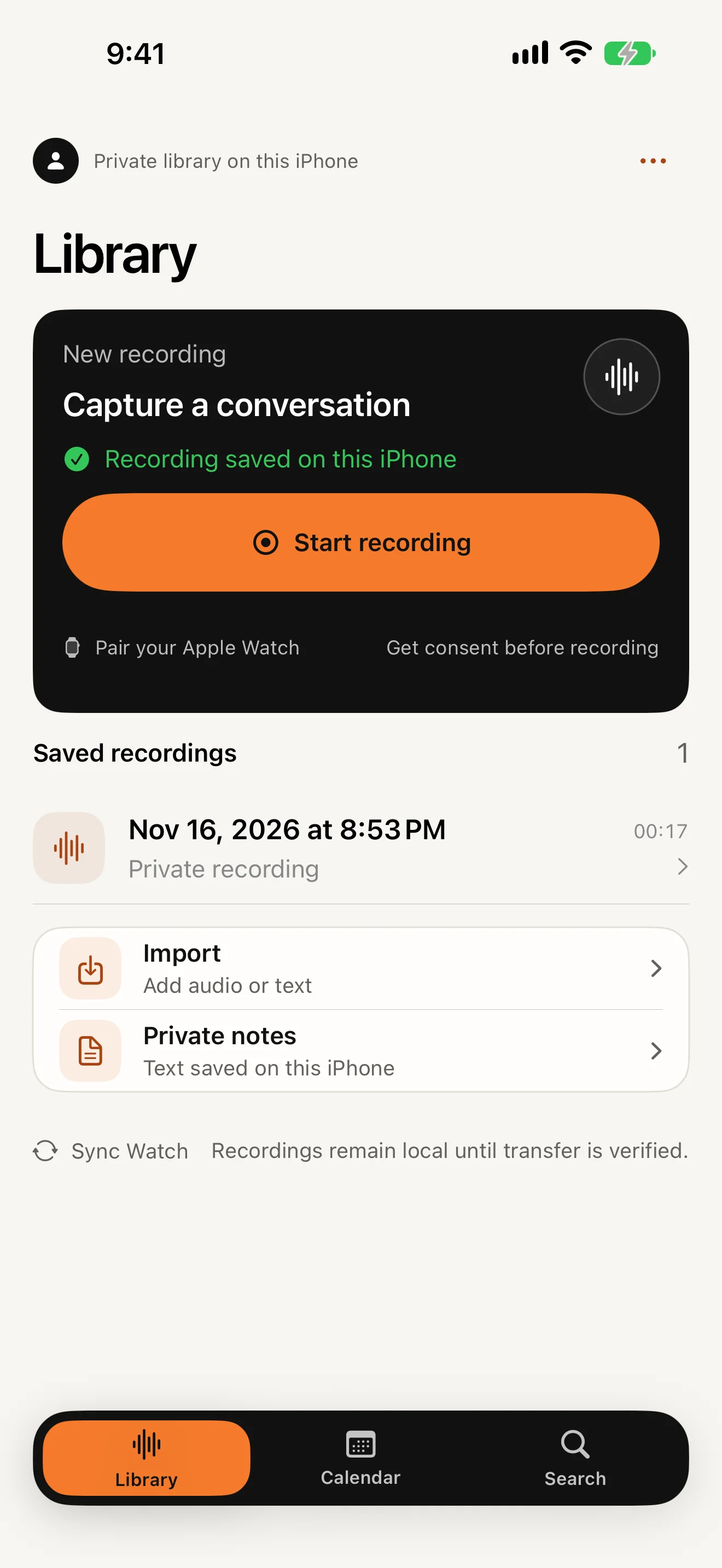
Tap Finish recording. The recording is saved on the device that made it.
Transfer
On the Watch, tap iPhone sync. The take moves to your paired iPhone and the Watch shows Ready on iPhone once the copy is verified.
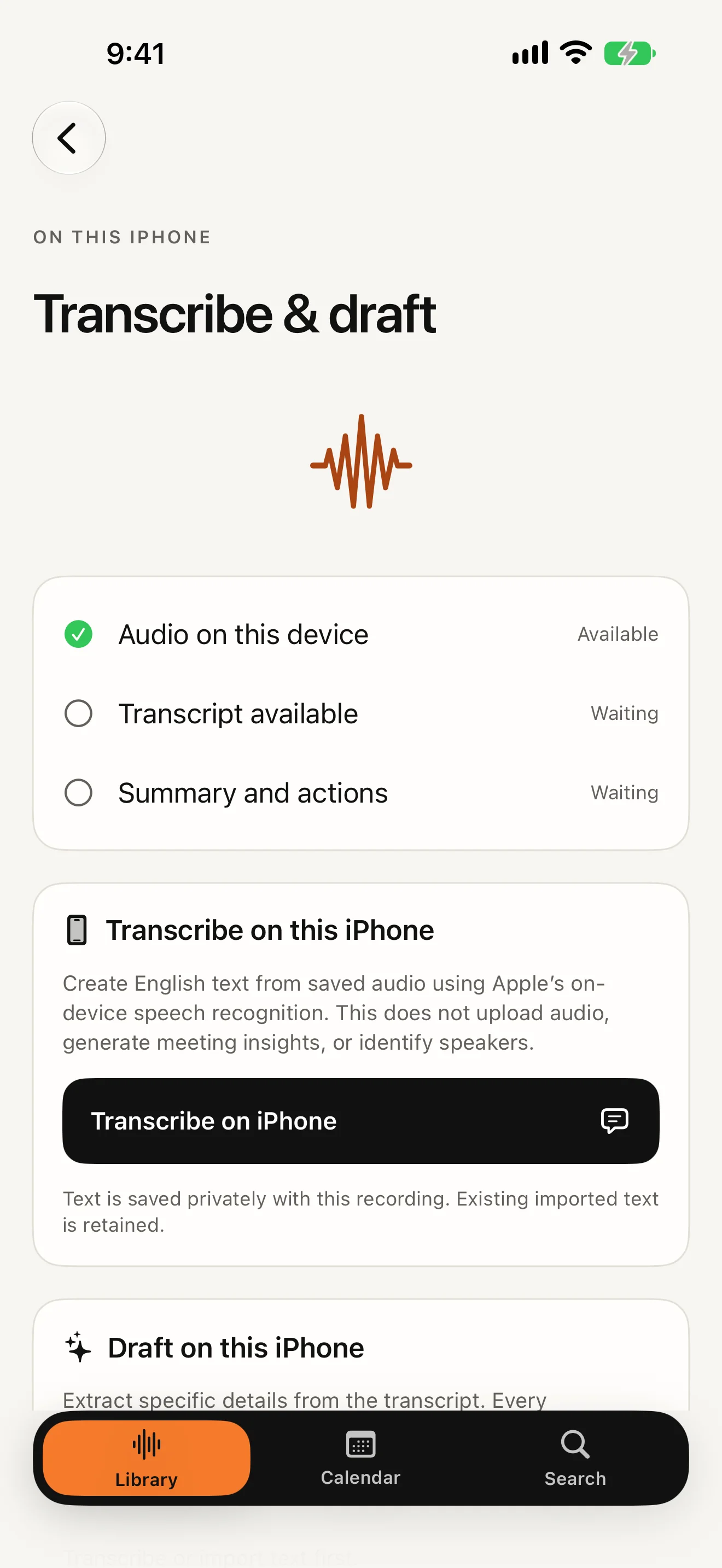
Transcribe
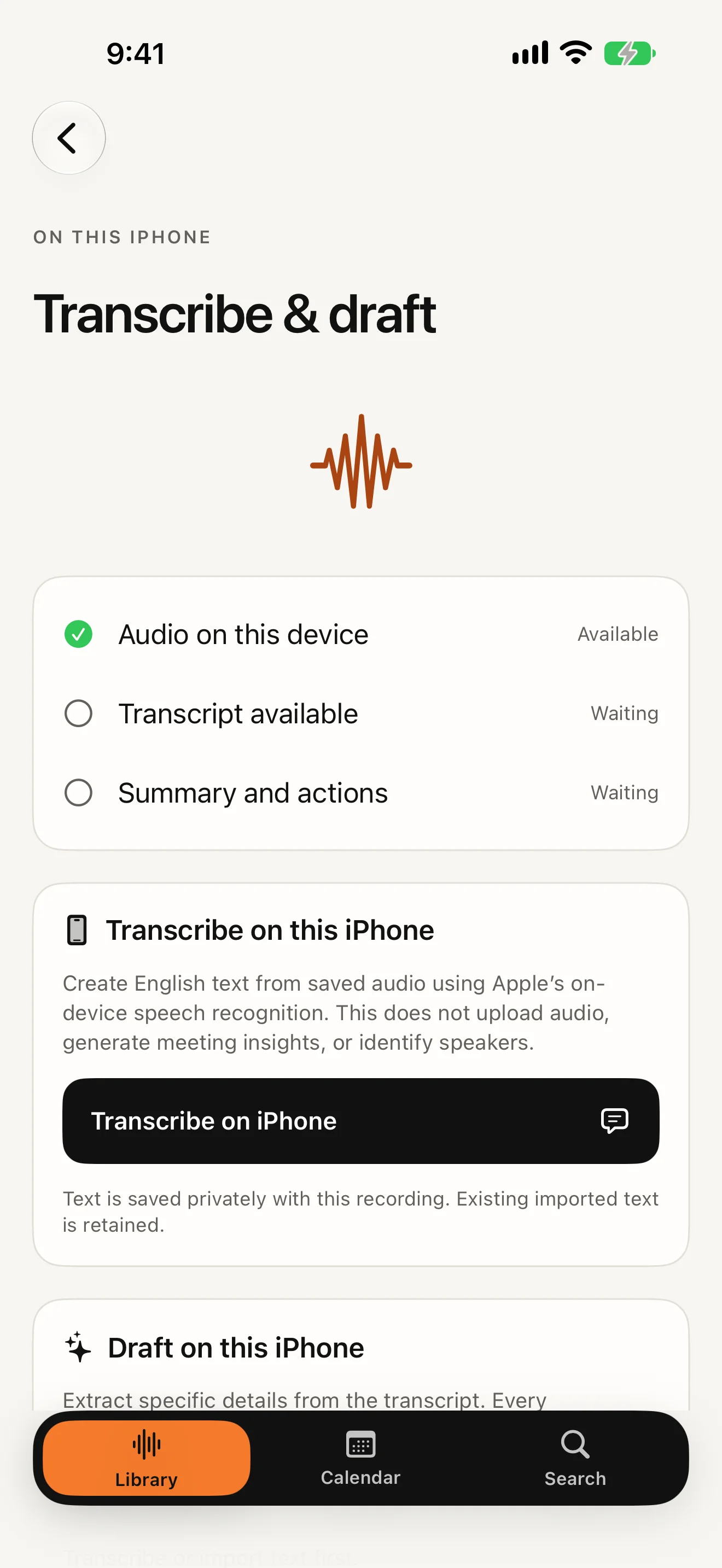
Open the recording, tap Transcribe & draft, then Transcribe on iPhone. Needs iOS 26 on a supported iPhone, English.
Draft
Where your iPhone supports Apple Intelligence, draft a summary, actions, decisions or open questions. Each quotes its source.
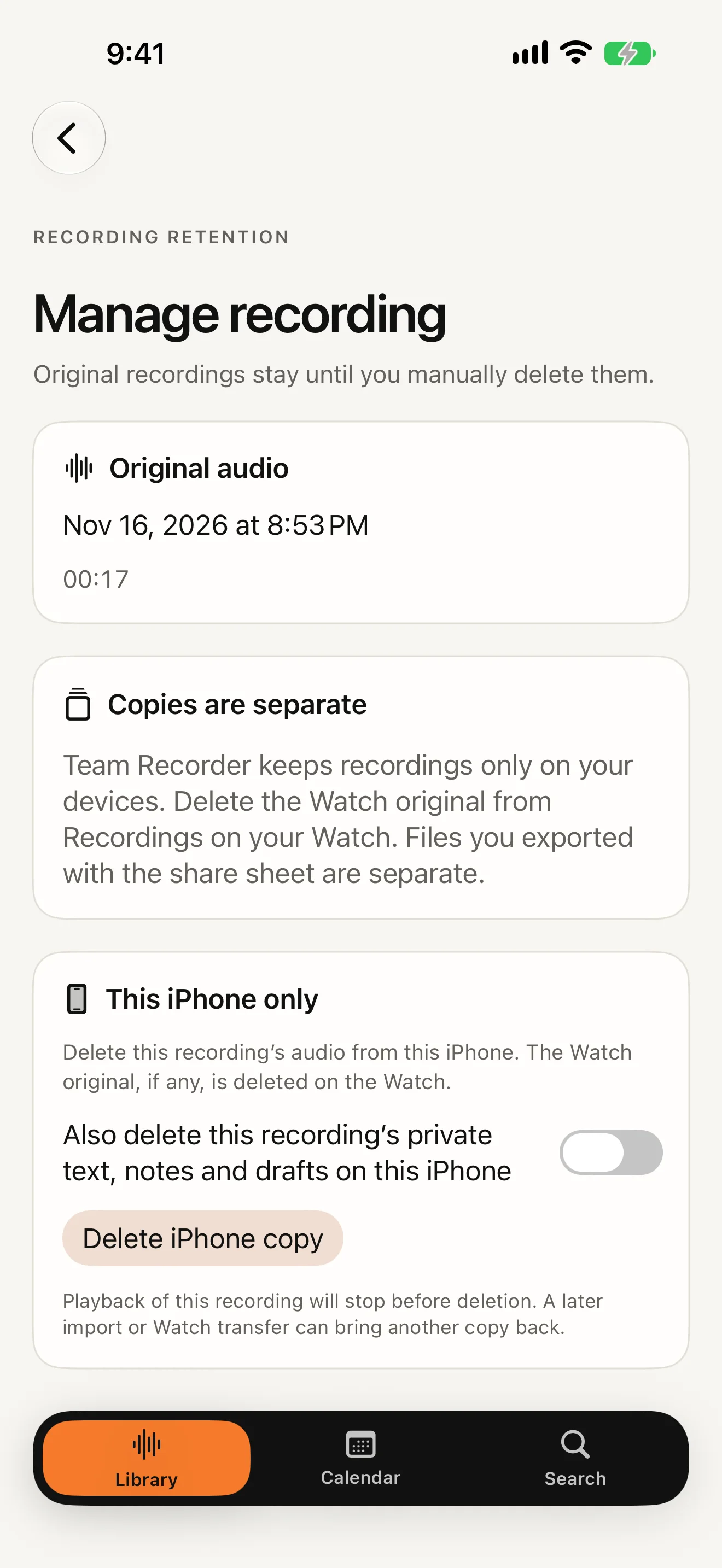
Delete
On iPhone: Manage or delete recording, then Delete iPhone copy. On the Watch: Recordings, then Delete from Watch.