How it works
Nine steps, from the first take to delete. Each one is a card on the desk.
Ember One card at a time. Press the Watch on the right when you're ready.
-
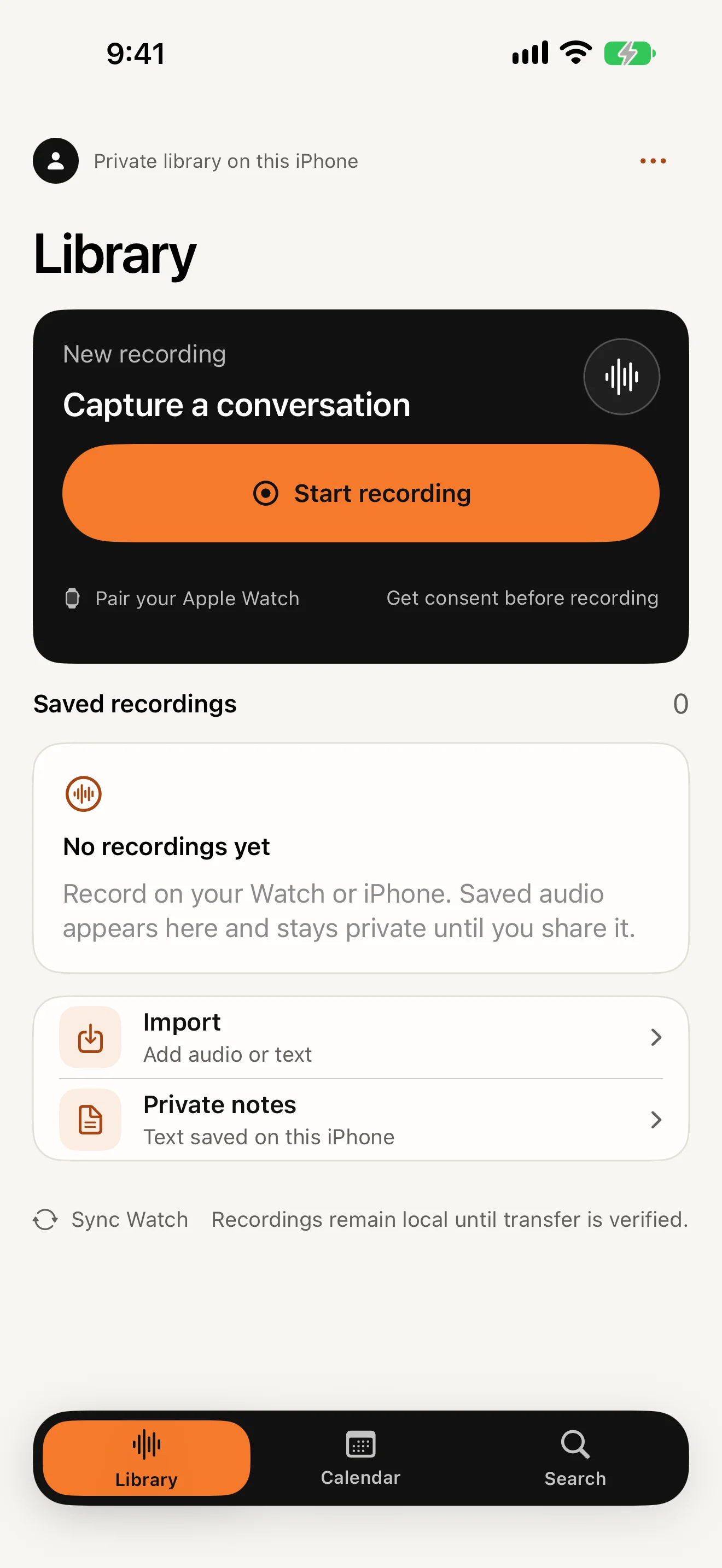
Start
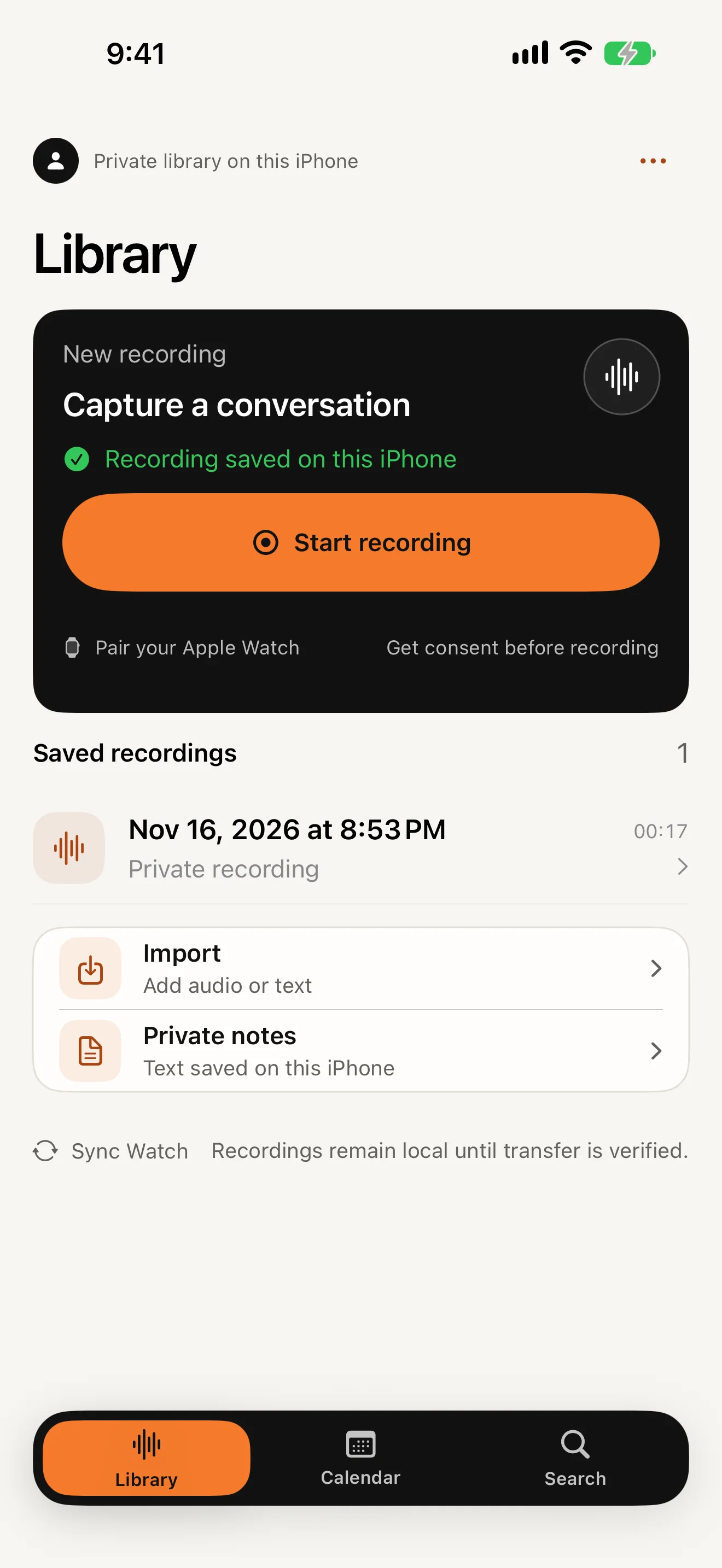
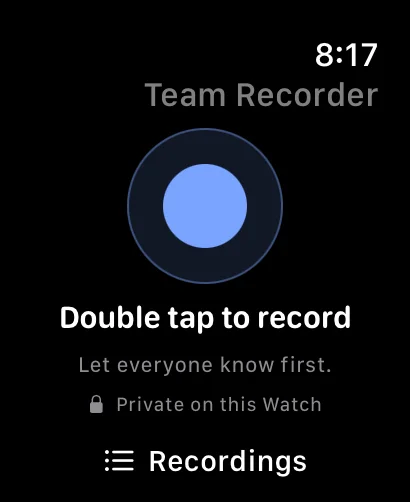
On iPhone, open the Library tab and tap Start recording. On Apple Watch, tap the microphone button, or double-tap the screen.
-
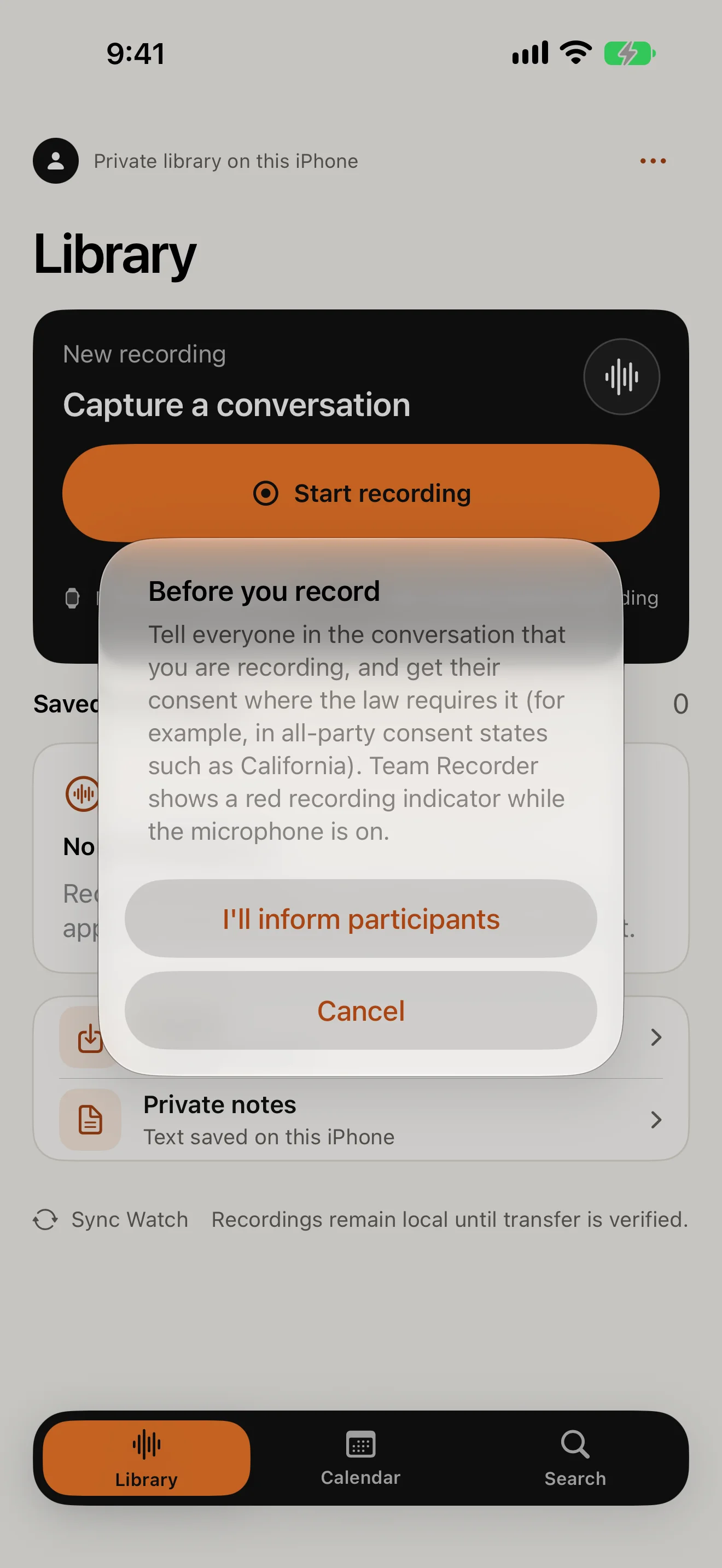
Tell them first
The first time, a Before you record notice reminds you to tell the people you are recording. Tap I'll inform participants, then allow the microphone when iOS asks.
-
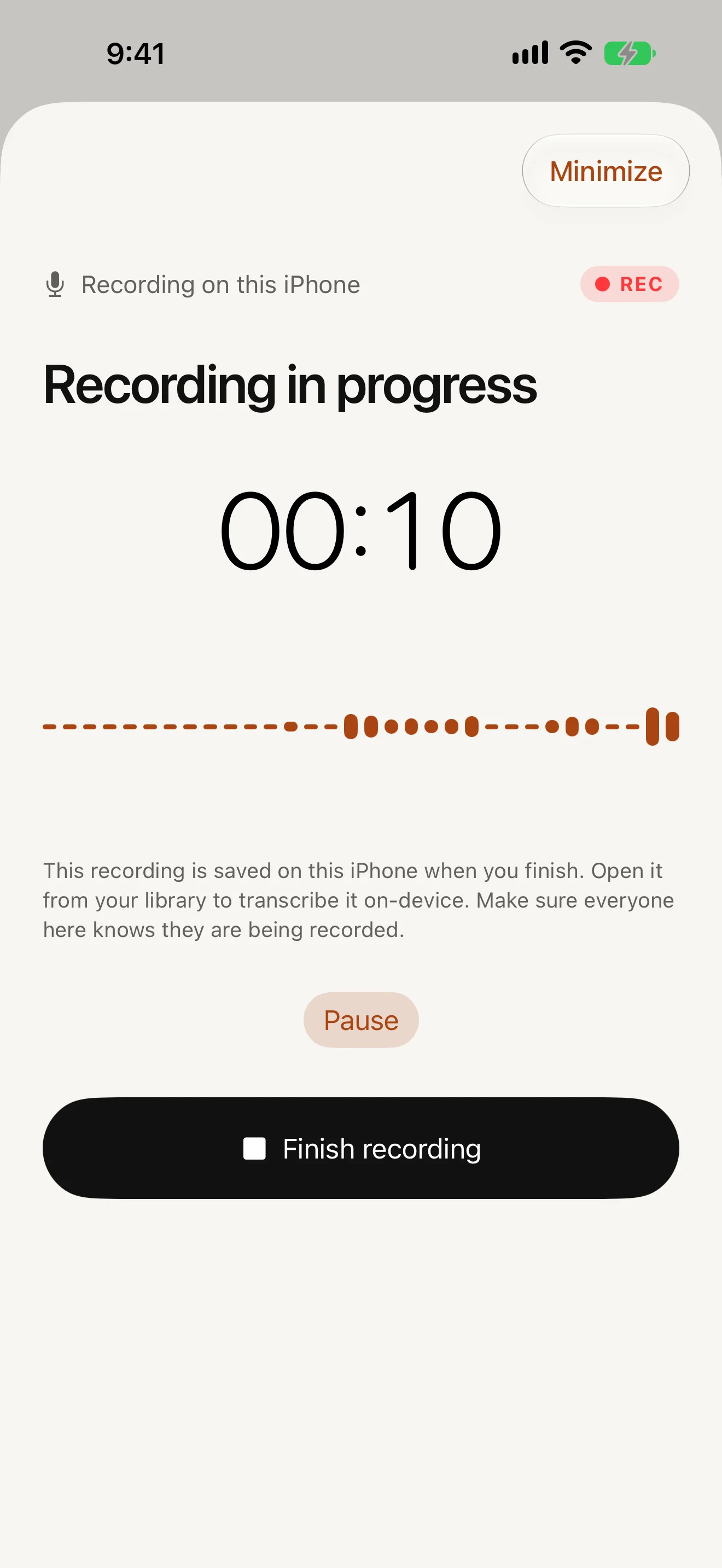
Record
A red REC indicator and timer stay on screen the whole time the microphone is on. Gentle check-ins every 15 minutes help you remember a recording is still running.
-
Pause and finish
Pause and Resume as needed, then tap Finish recording. Long meetings are saved in segments, and interrupted audio is recovered instead of lost.
-
Move it from the Watch
On the Watch, tap iPhone sync. The recording moves to your paired iPhone with a verified checksum receipt. The Watch shows Ready on iPhone when the copy has arrived intact.
-
Transcribe
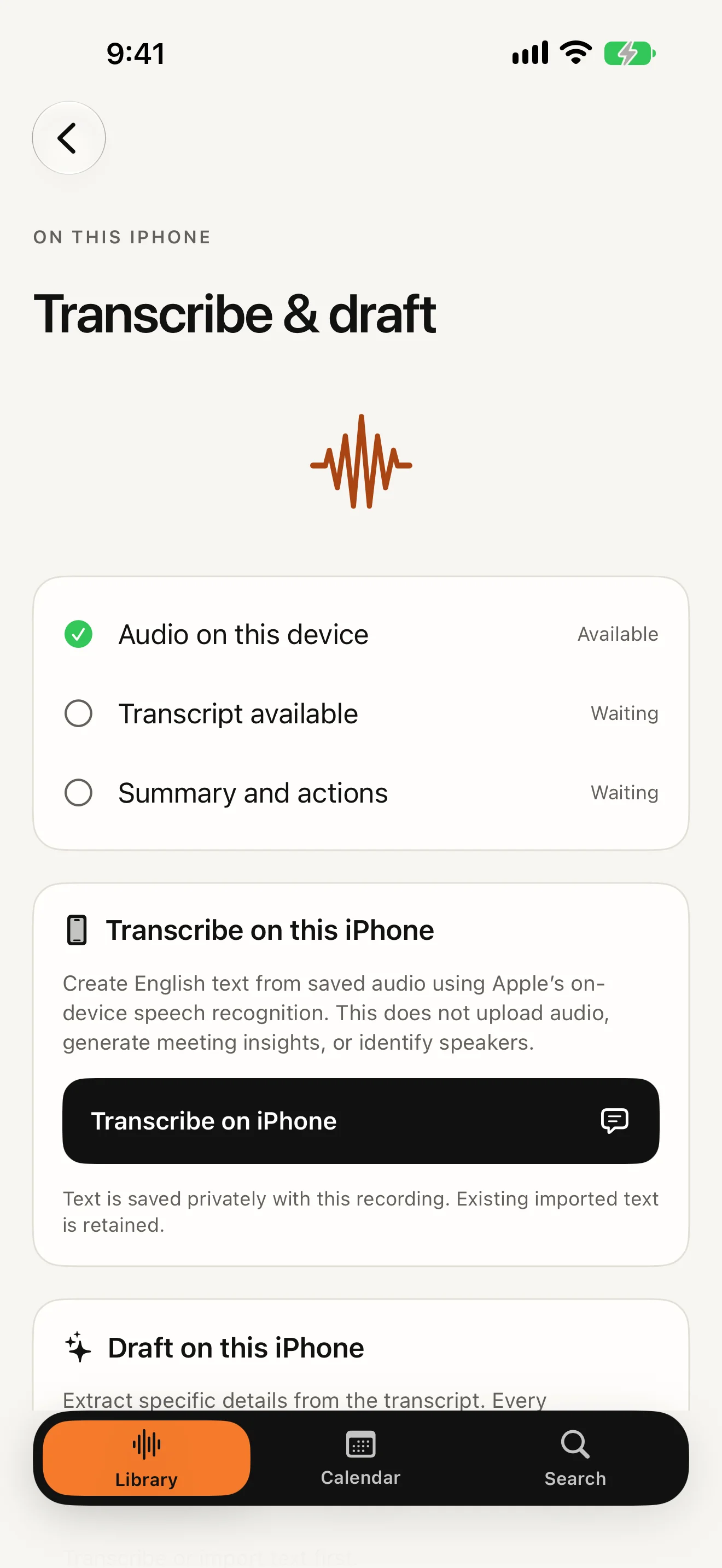
Open the recording, tap Transcribe & draft, then Transcribe on iPhone. This runs on your device and needs iOS 26 on a supported iPhone, in English.
-
Draft
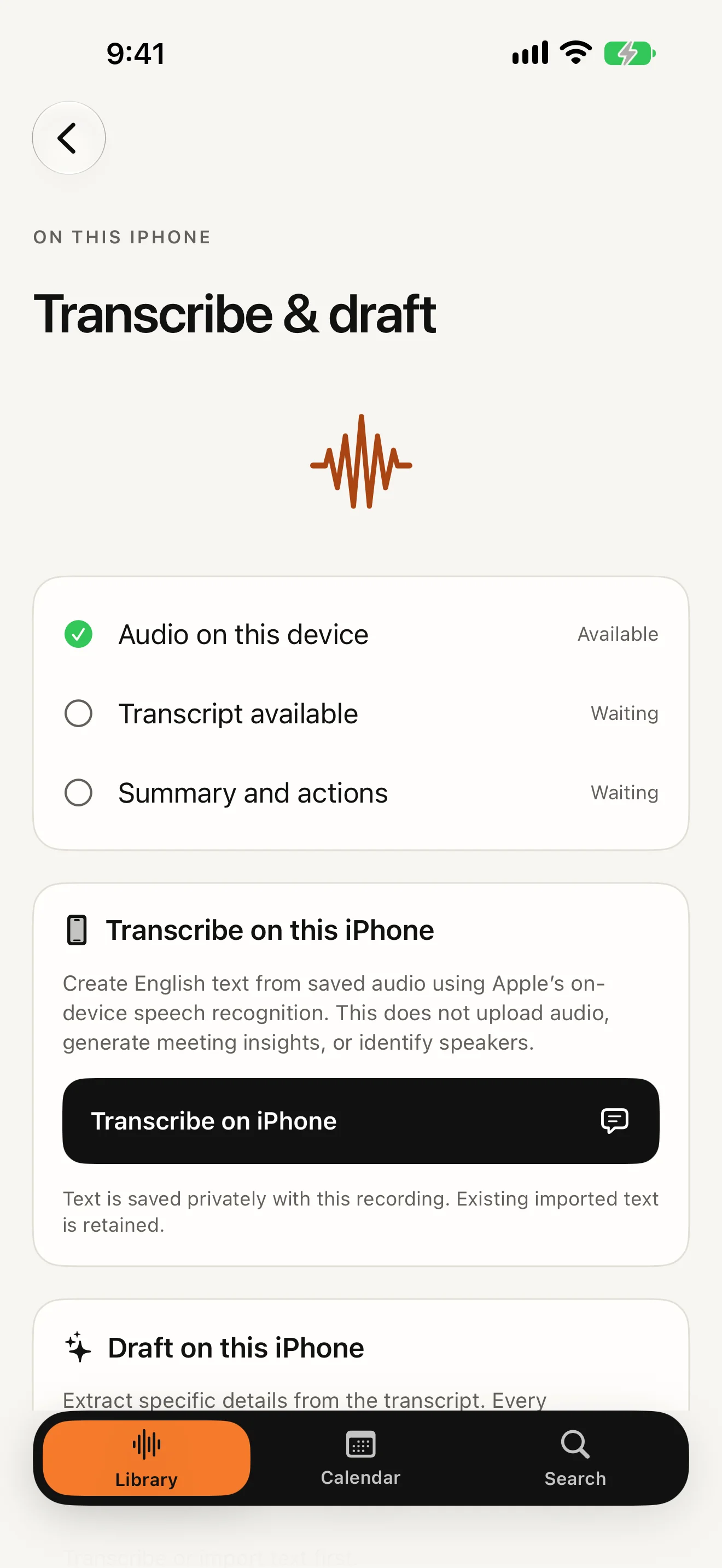
Where your iPhone supports Apple Intelligence, draft a summary, action items, decisions or open questions on the phone. Every suggestion quotes its source.
-
Review
Play back with 15-second skips and adjustable speed. Add a title, private notes and your own action items. Search titles, notes and transcripts.
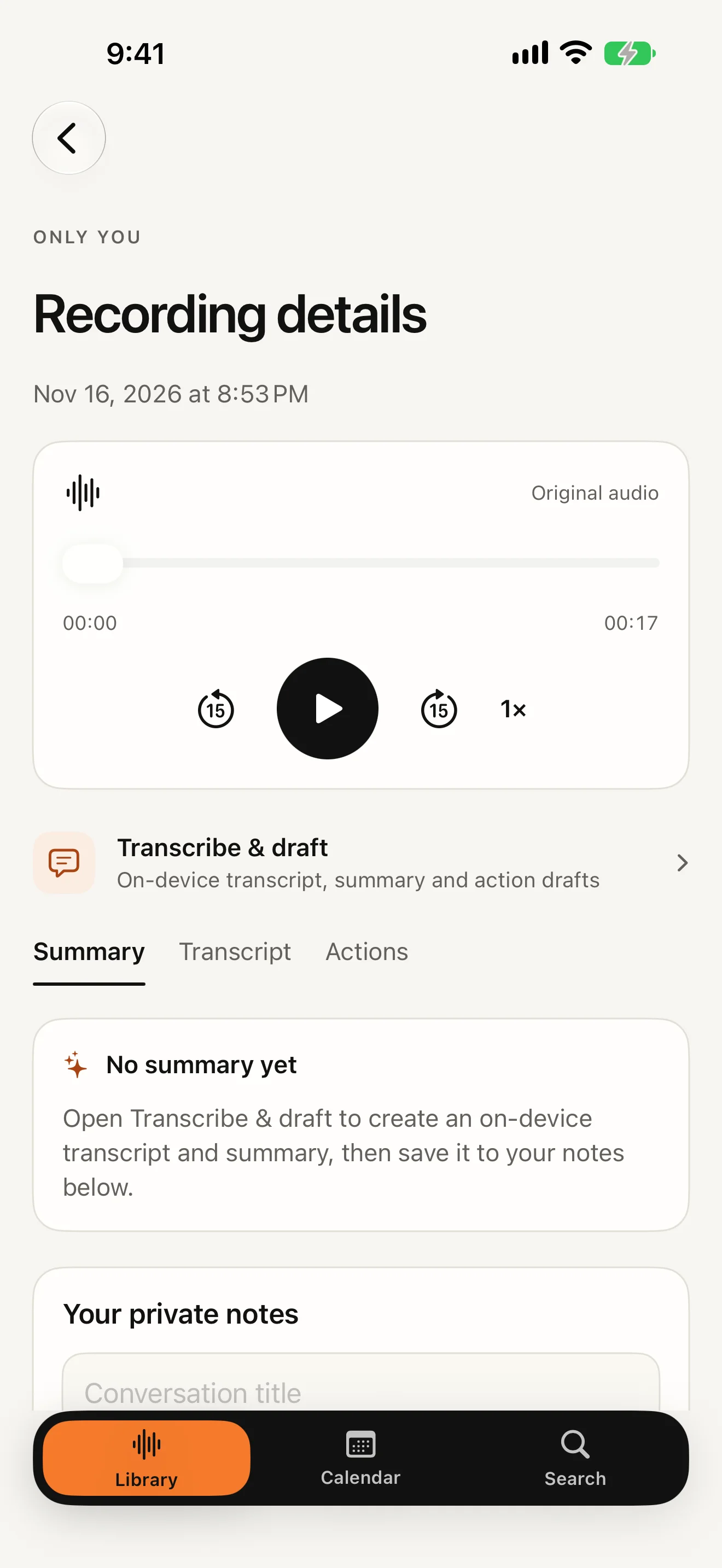
-
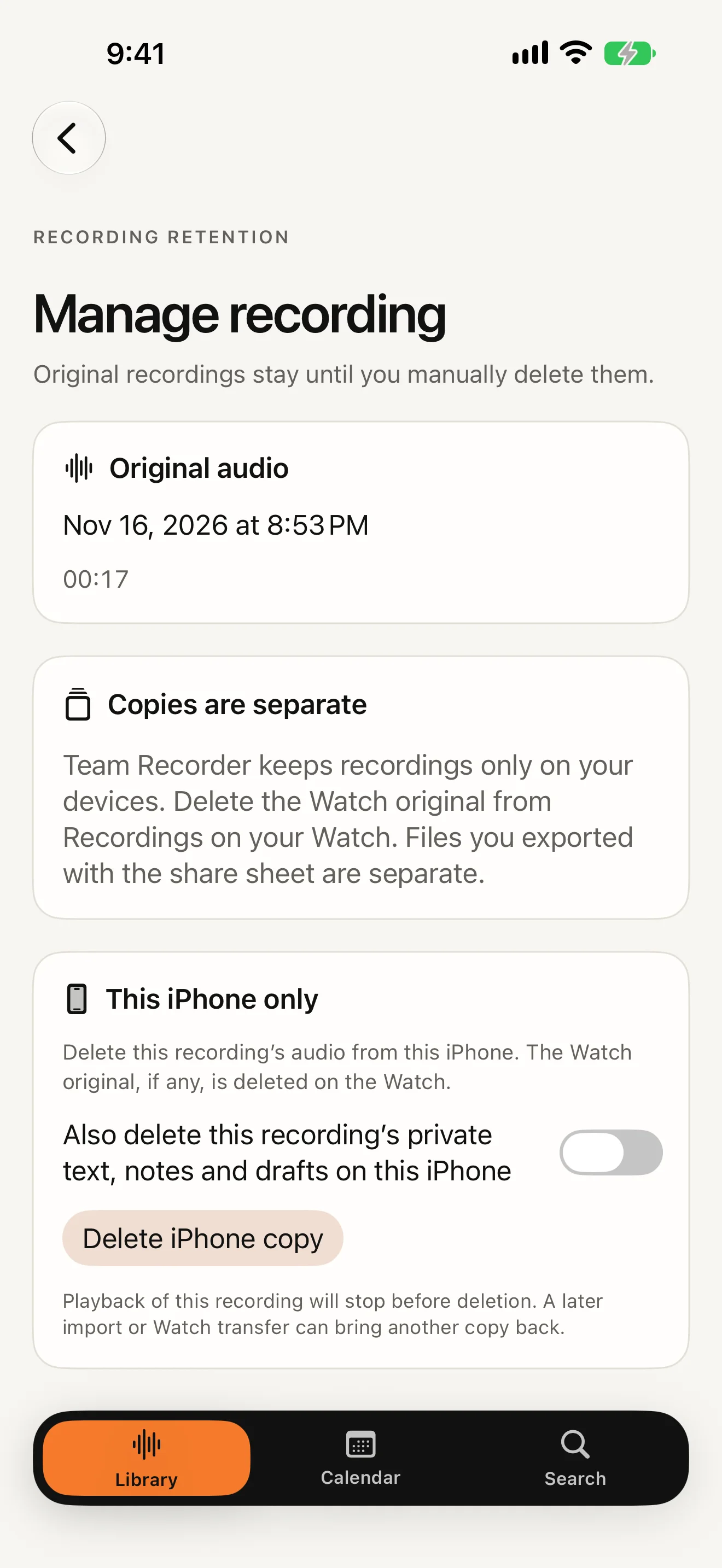
Delete
On iPhone: Manage or delete recording, then Delete iPhone copy. On the Watch: Recordings, then Delete from Watch.